Installing an Automatic Watering System Part 2: Building the Water Control Valve


If you are a keen gardener, you will be well aware of the need to keep your flowers and vegetables hydrated, and of how much time this takes using a watering can. The alternative is to set up an automatic watering system. Automatic watering timers are widely available, but I wanted one that would respond to soil moisture, not just the time of day.

Aims

  • Set up a watering system to respond to soil moisture levels.
  • For this we will need an outside tap, hosepipes, leaky pipe or sprinklers. And a water control valve. We will start by building a LoRa connected soil moisture sensor.

Research

Equipment

My shopping list included the following items:

Items also needed, but can also be used on other projects

Procedure

First, connect your Arduino MKR WAN to your TTN account by following the procedure here.

If you wish to connect to an application such as Home Assistant using MQTT, then read this.

Next, collect together all the items listed above ready for assembly. 

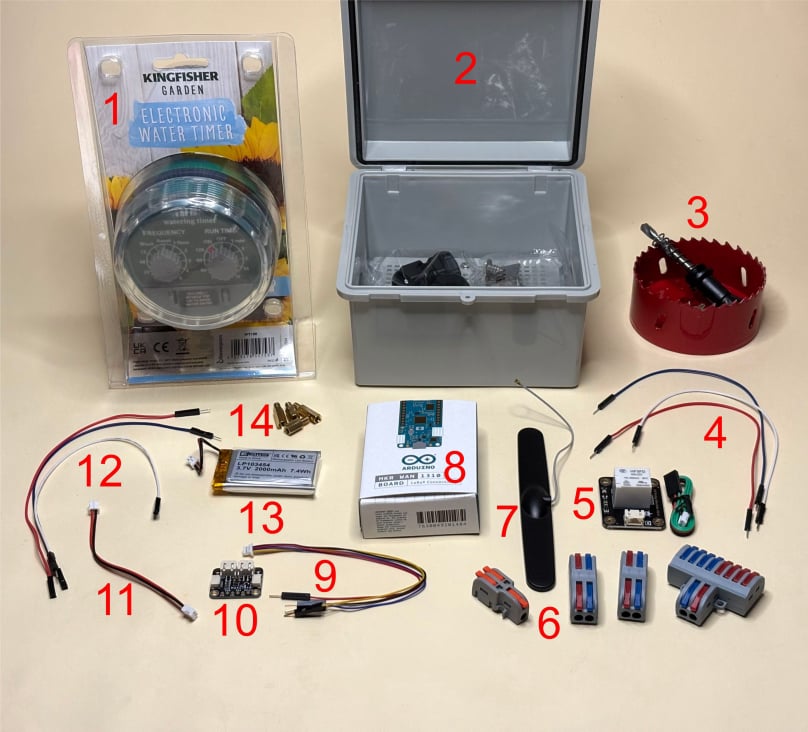
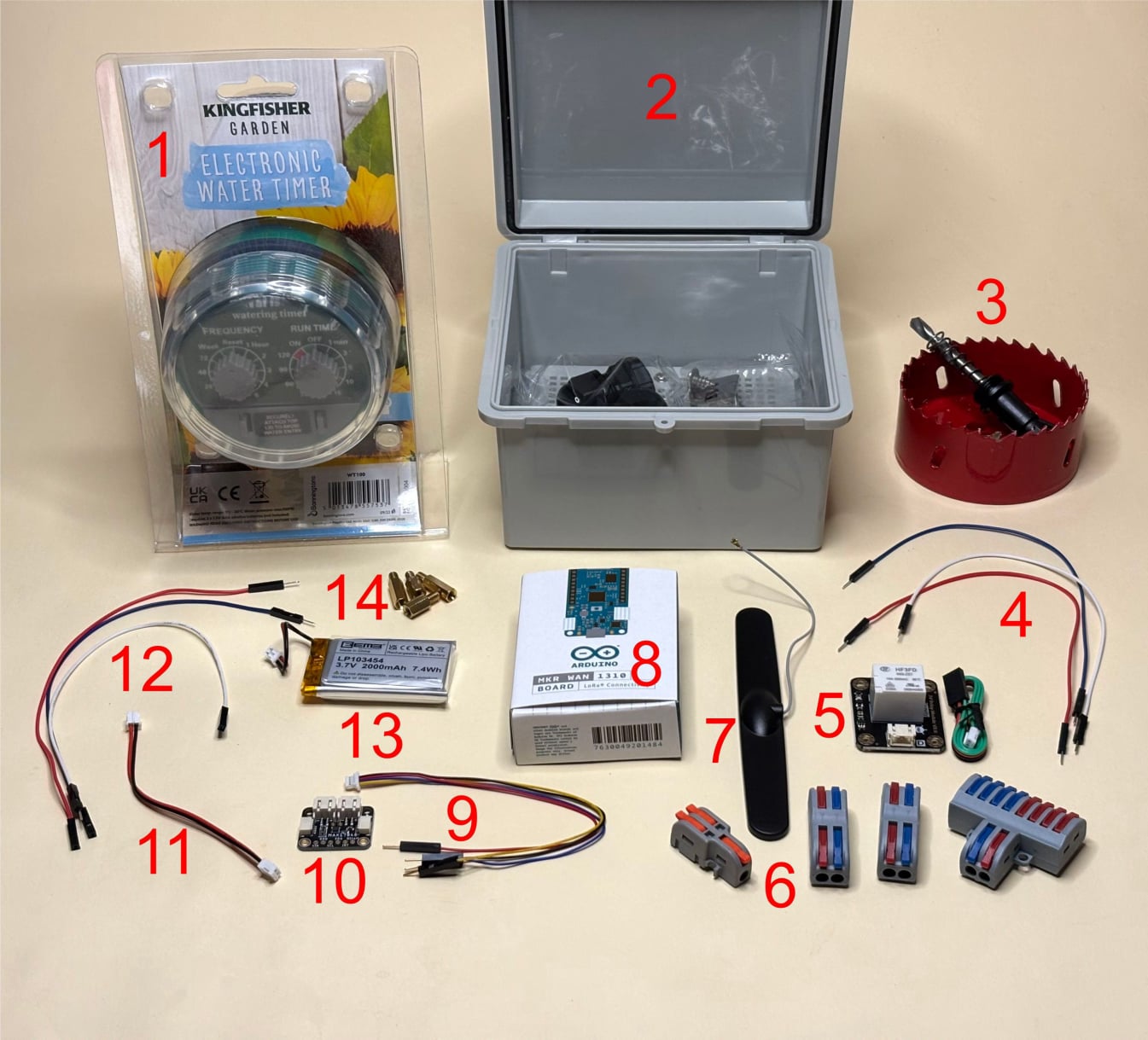
The components

What’s in the picture:

1. Kingfisher water timer.
2. Waterproof junction box.
3. 80mm hole saw.
4. Jumper wires male to male.
5. Digital 10A Relay Module.
6. Connector blocks.
7. Antenna.
8. MKR WAN 1310.
9. I2C Qwiic Stemma QT cable.
10. Fuel gauge and battery monitor.
11. JST-PH 2-pin jumper cable.
12. Jumper wires male to female.
13. Battery
14. Standoff screws.

Not illustrated, but you are also going to need:
15. 60mm hole saw.
16. JST PH 2-Pin Cable – Male Header 200mm.
17. 2.5mm Pitch 2-pin Cable Matching Pair - JST XH compatible. 

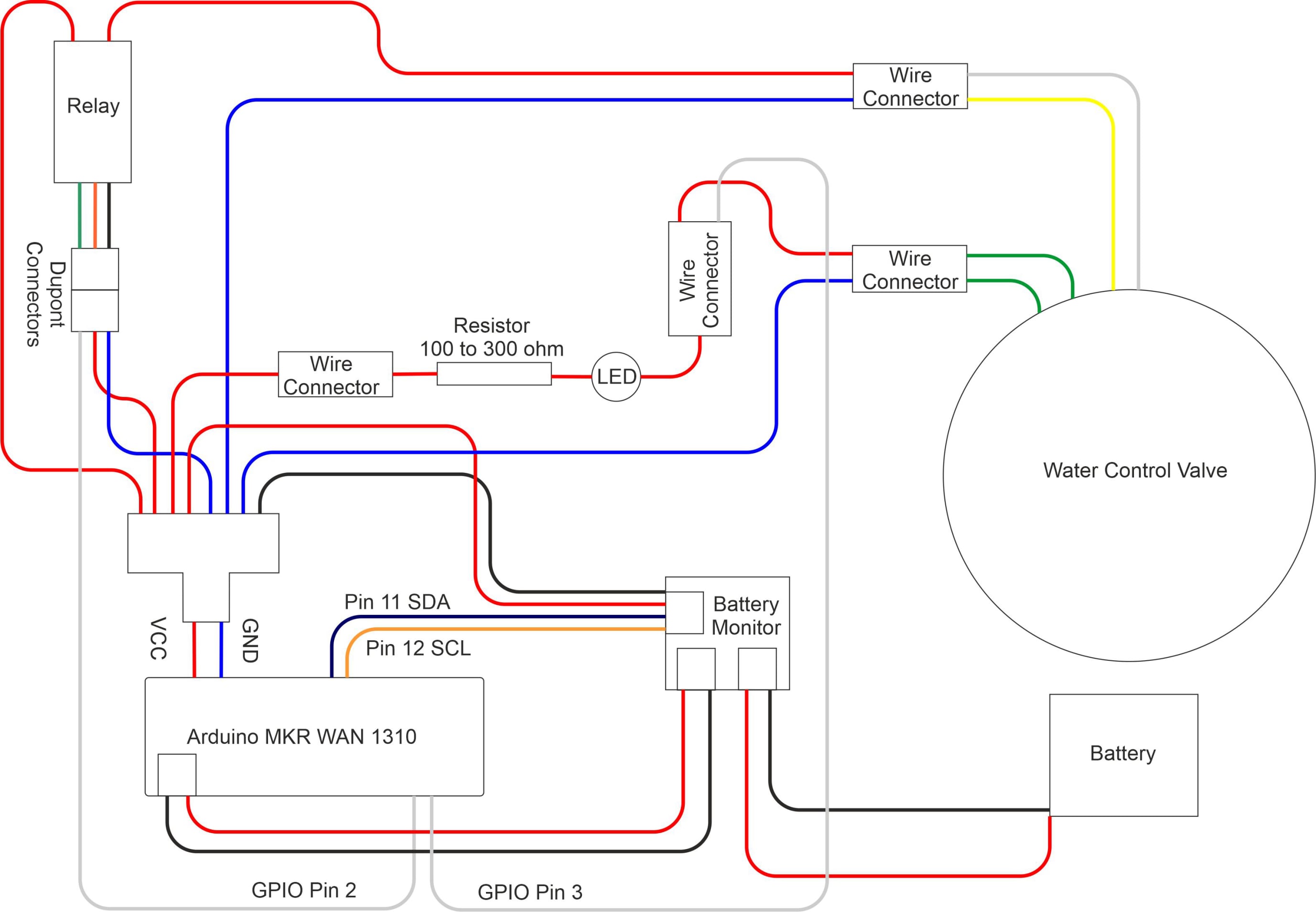
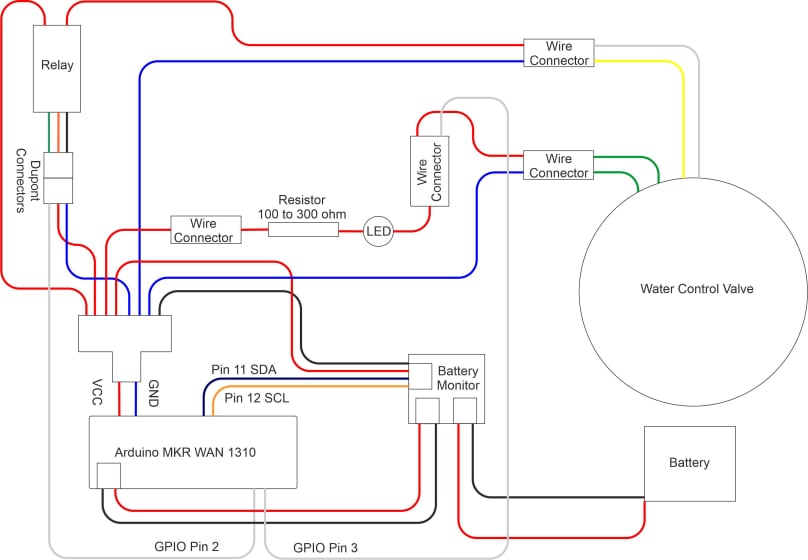
Here is a schematic that shows how the components are to be connected:

Water control wiring

To create our LoRa powered flow control valve, we have to remove the electronics from the Kingfisher water timer and replace them with our own electronics. The procedure can be summarised as follows:

1. Connect the Arduino MKR WAN to your The Things Network account.
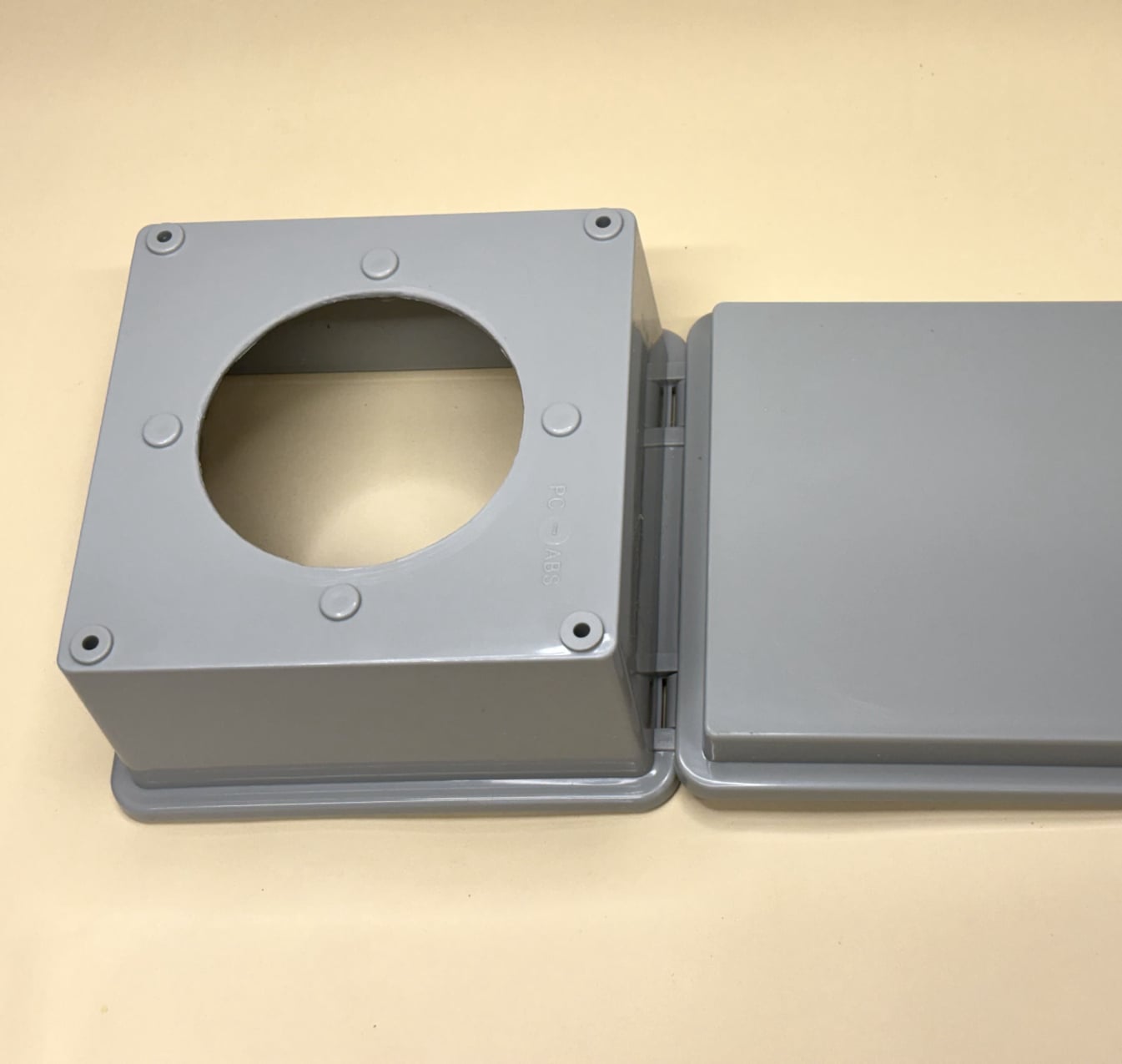
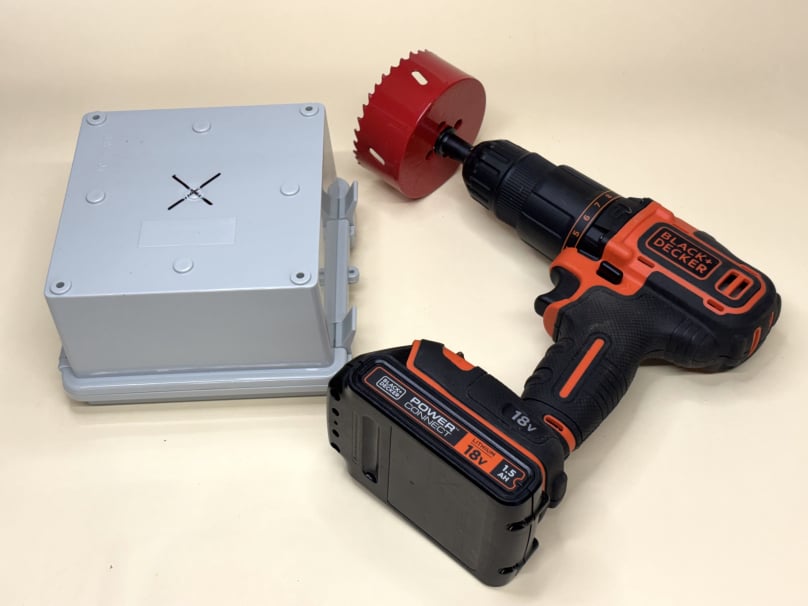
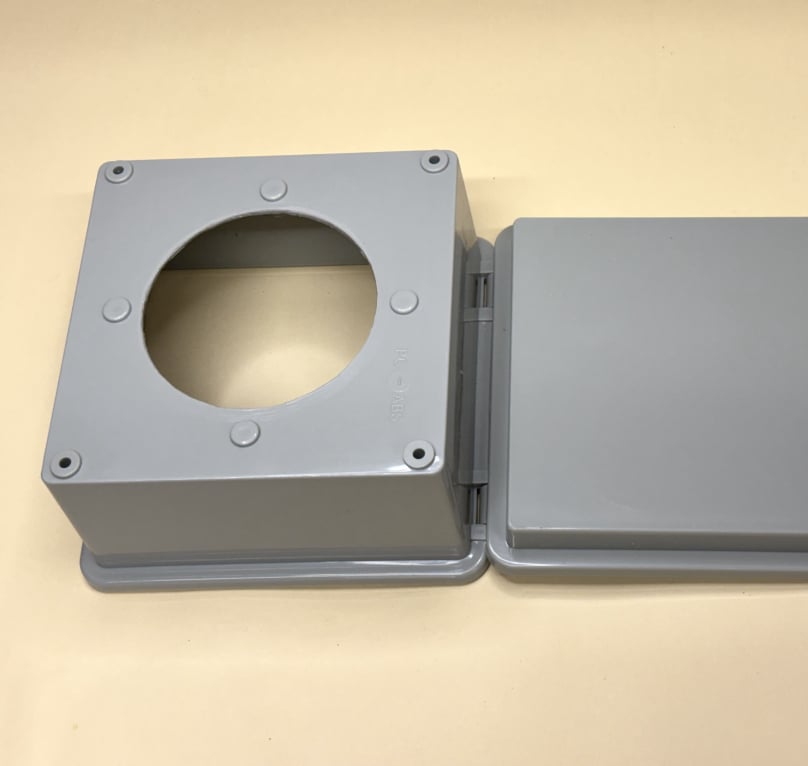
2. Drill a hole in the waterproof junction box to accommodate the body of the water timer.
3. Drill a hole in the water timer cover so that we secure the timer in the junction box while still being able to connect to the motor and sensor.
4. Dismantle the water timer and remove the electronics.
5. Assemble and connect our own LoRa connected electronics.
6. Connect the relay.
7. Connect the battery monitor.
8. Connect the water timer motor.
9. Connect the water timer sensor.
10. Connect everything together.
11. Upload and test the sketch.
12. Assemble all components on the junction box mounting plate.
13. Attach the mounting plate and water timer to the junction box. 

Connect the Arduino MKR WAN to your The Things Network account

We have a tutorial that explains how to do this here: Create an Account at The Things Network.

Once everything is set up, we can test the water control valve by sending a downlink message from your TTN account to the valve, allowing us to open and close it remotely. 

Smooth hole with file

You may need to tidy up the edge of the hole with a file, as when we screw the water timer into the hole we need to have a waterproof seal.

Drill hole in cover

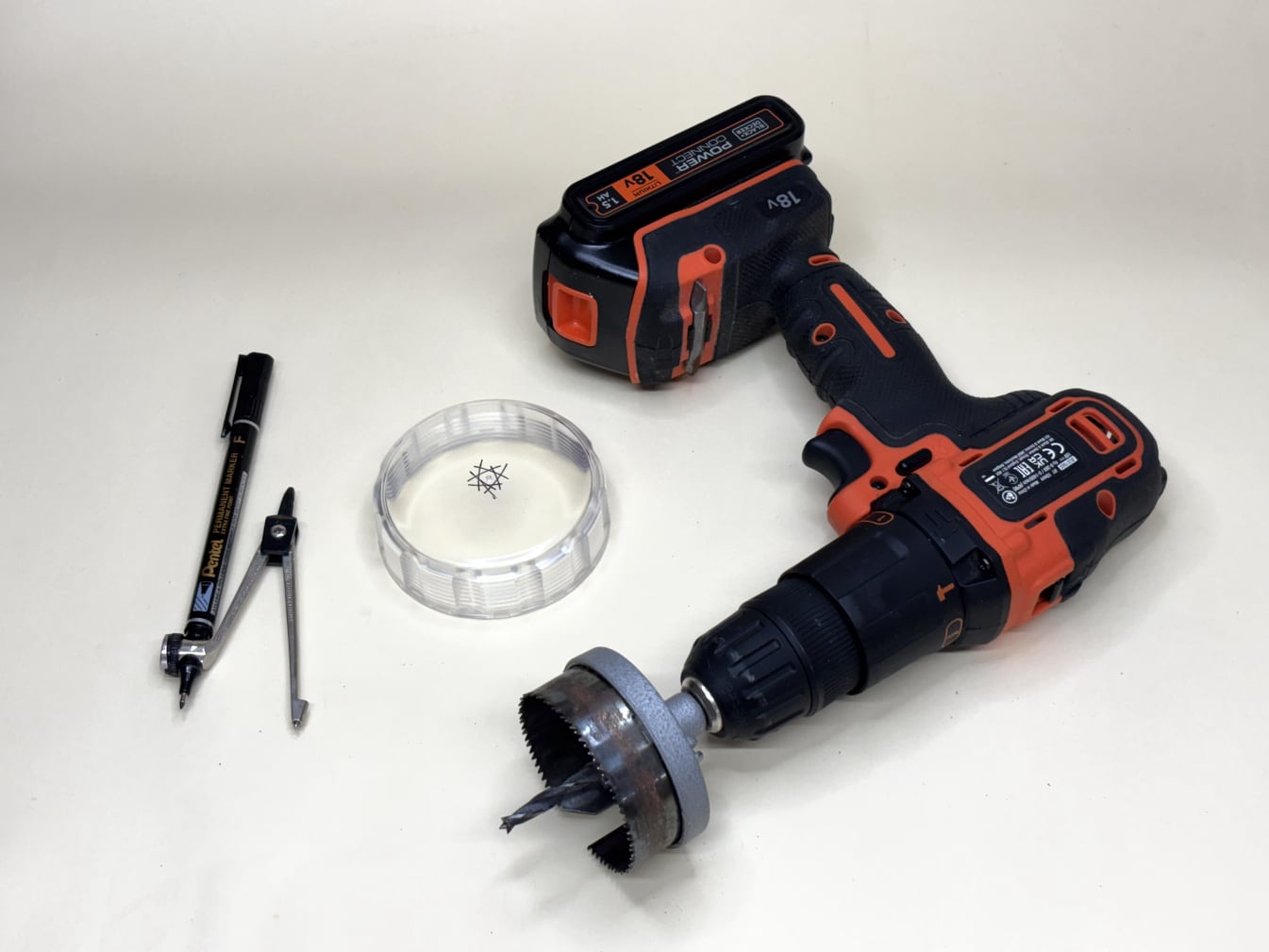
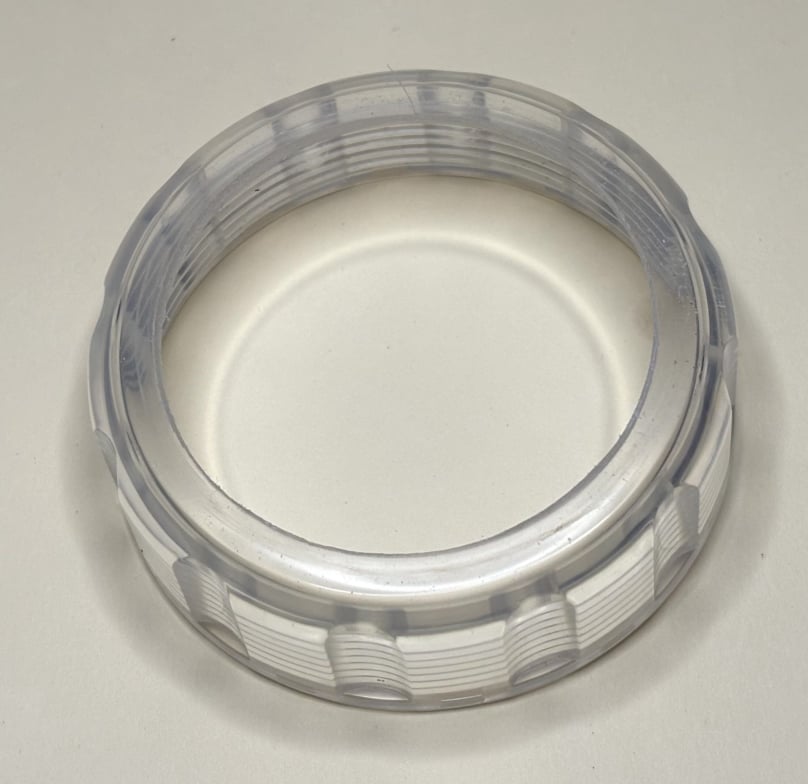
Drill a hole in the water timer cover

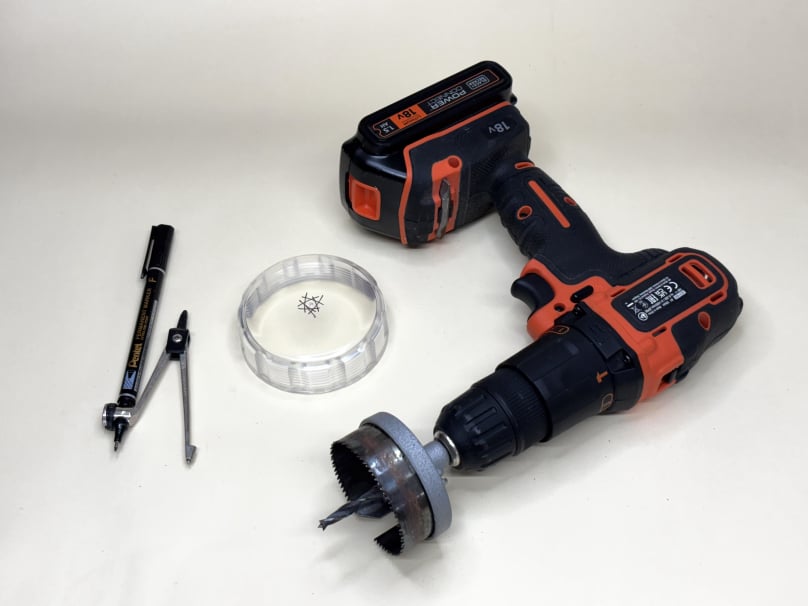
To locate the centre of the water timer cover, use a permanent marker and a pair of dividers. Place the point of the dividers near the edge of the transparent cover and adjust the opening so that the marker point rests approximately halfway across the cover. Keeping the dividers at the same setting, move the point around the perimeter of the cover and draw a series of arcs. Where the arcs intersect will indicate the approximate centre of the cover.


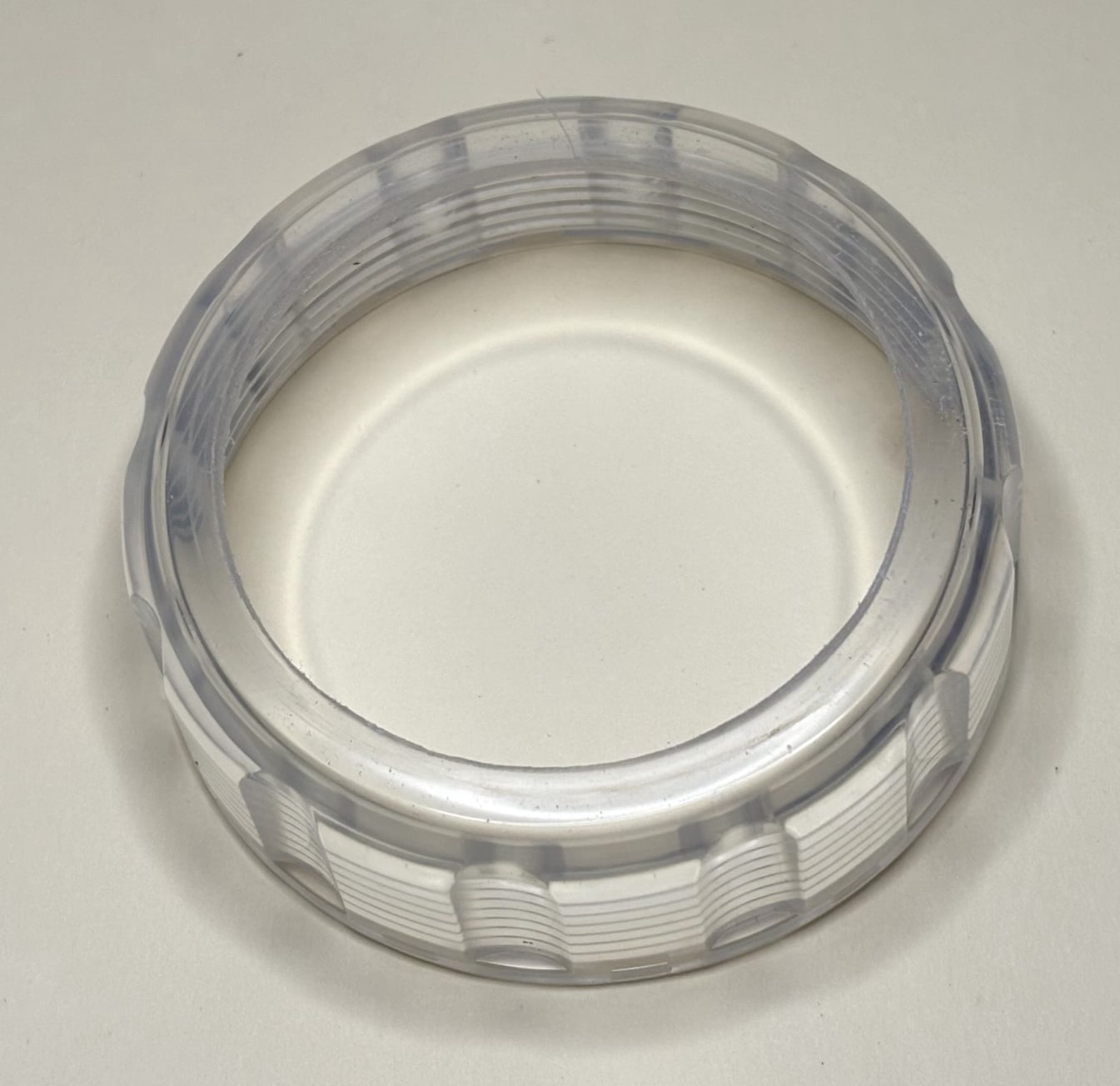
Hole drilled in cover

Drill a 60mm hole in the cover. Again, starting with a pilot hole may help.

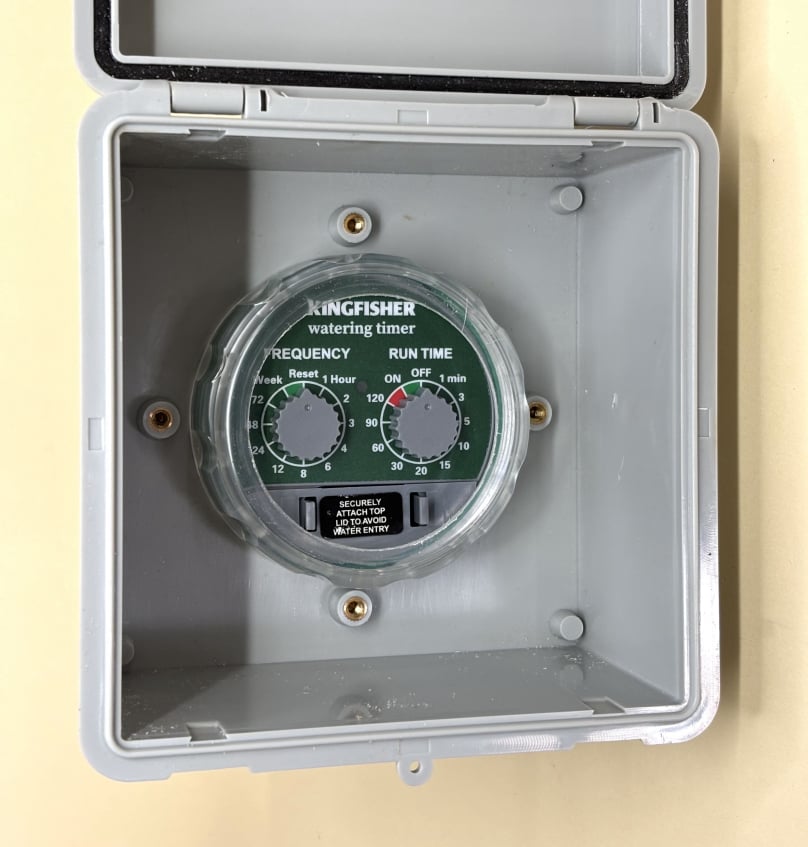
Test assembly

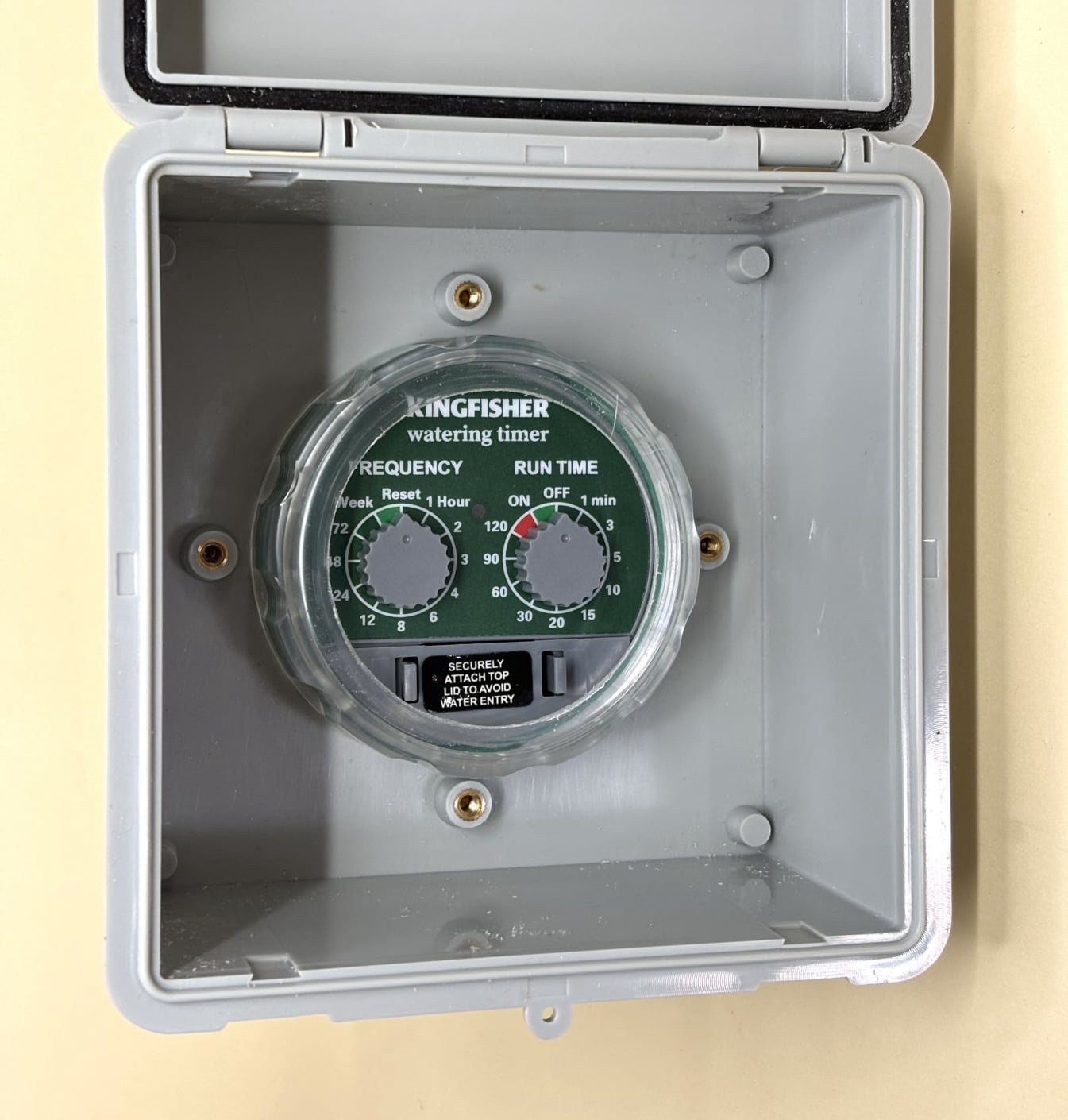
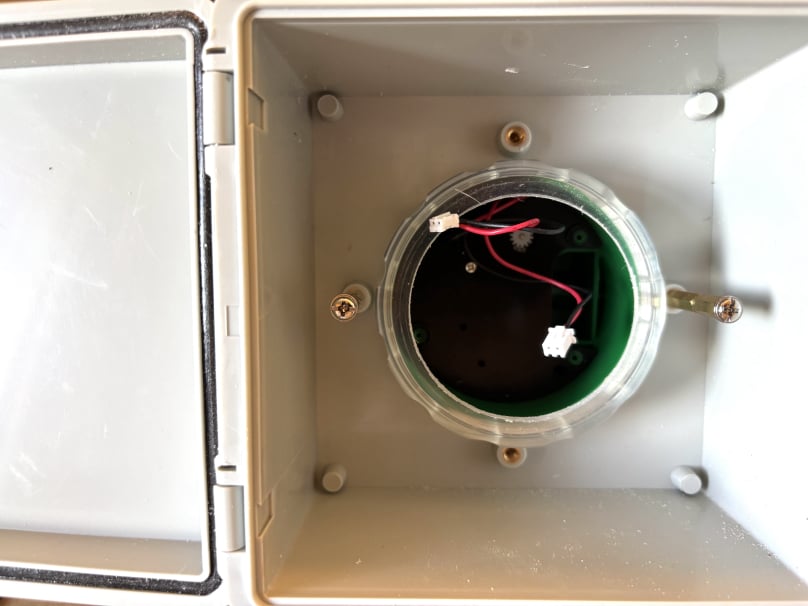
If you now push the body of the water timer through the hole in the junction box and then screw back the cover, it should look like this.


Dismantle the timer

Dismantle the water timer and remove the electronics.

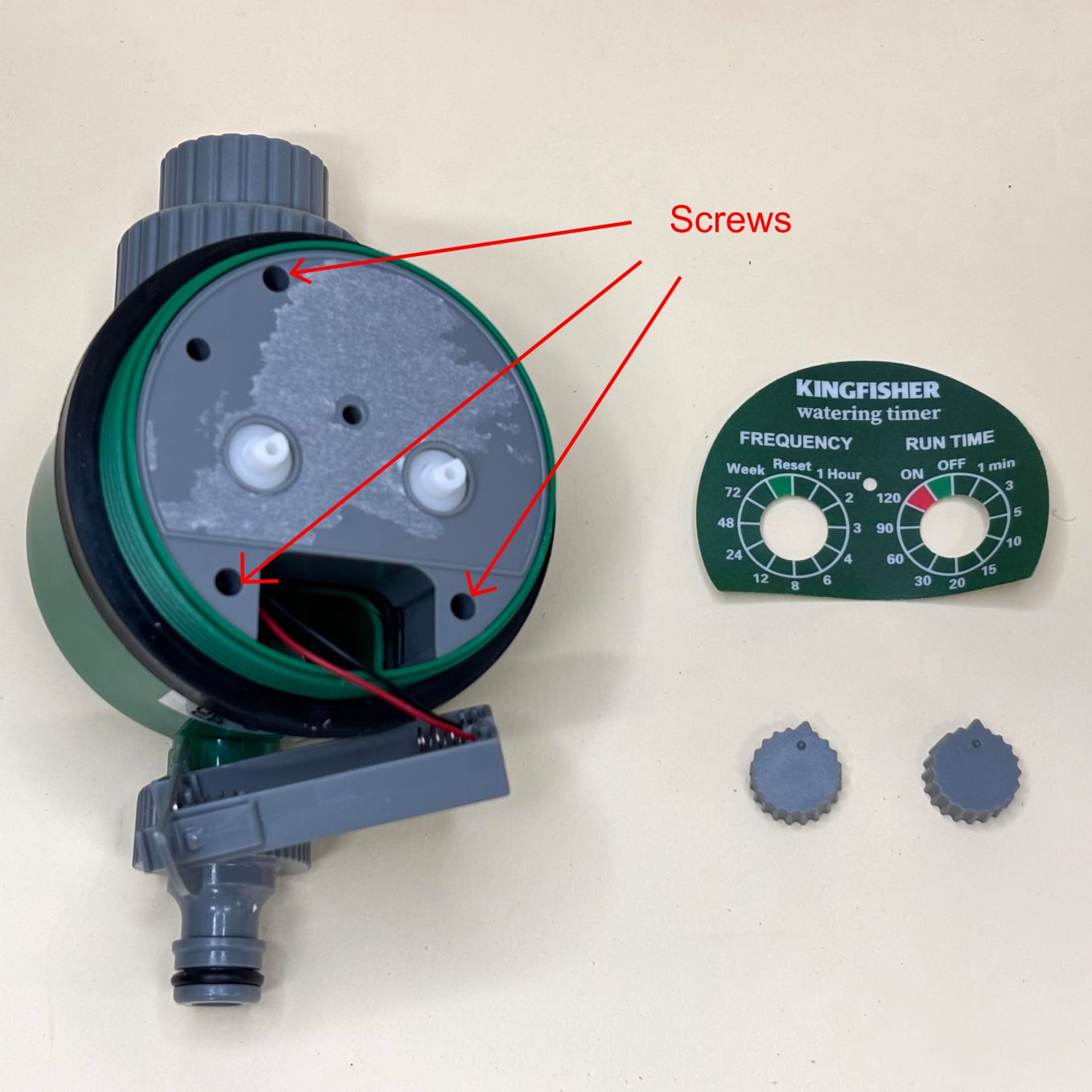
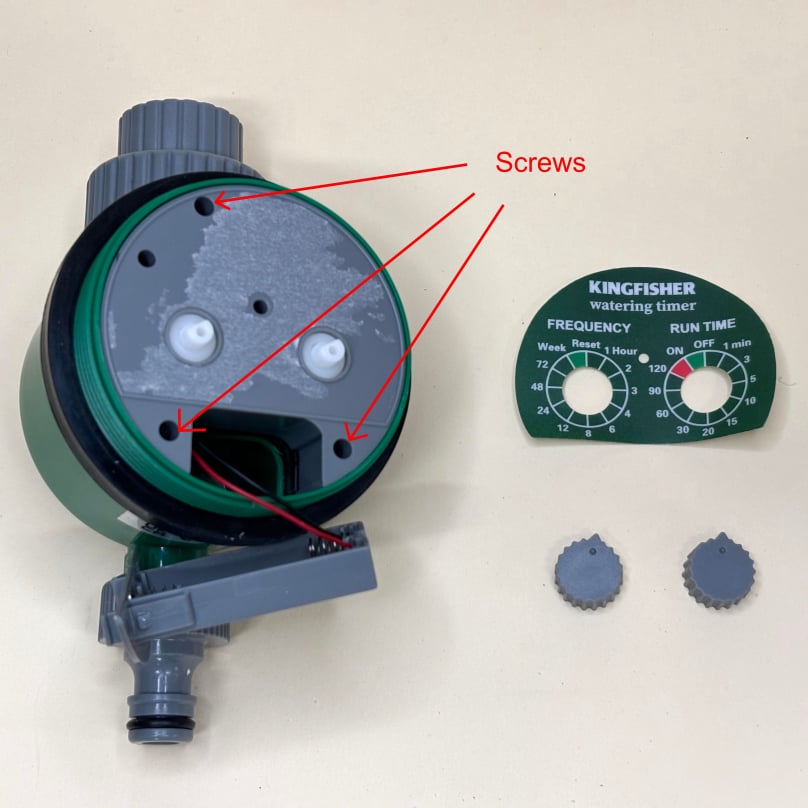
Once you have confirmed that everything fits together, unscrew the cover and remove the water timer from the junction box. The timer electronics are secured by three screws, which must be accessed and removed.

Pull off the two knobs; they are simply push-fit. Next, remove the green plastic panel that displays the frequency and run-time information. This panel is only stuck on, but you may need to use a screwdriver to start lifting it.


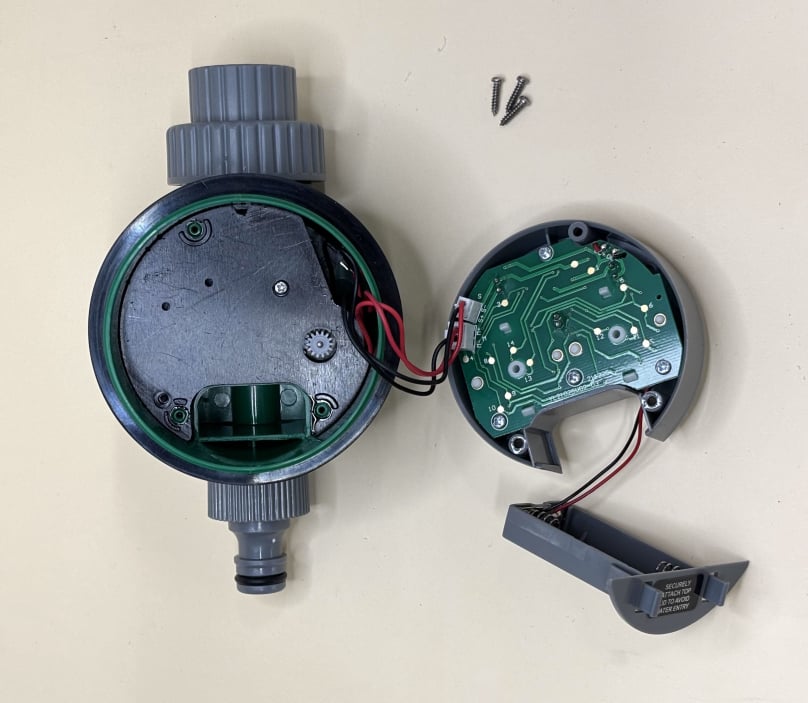
Remove the electronics

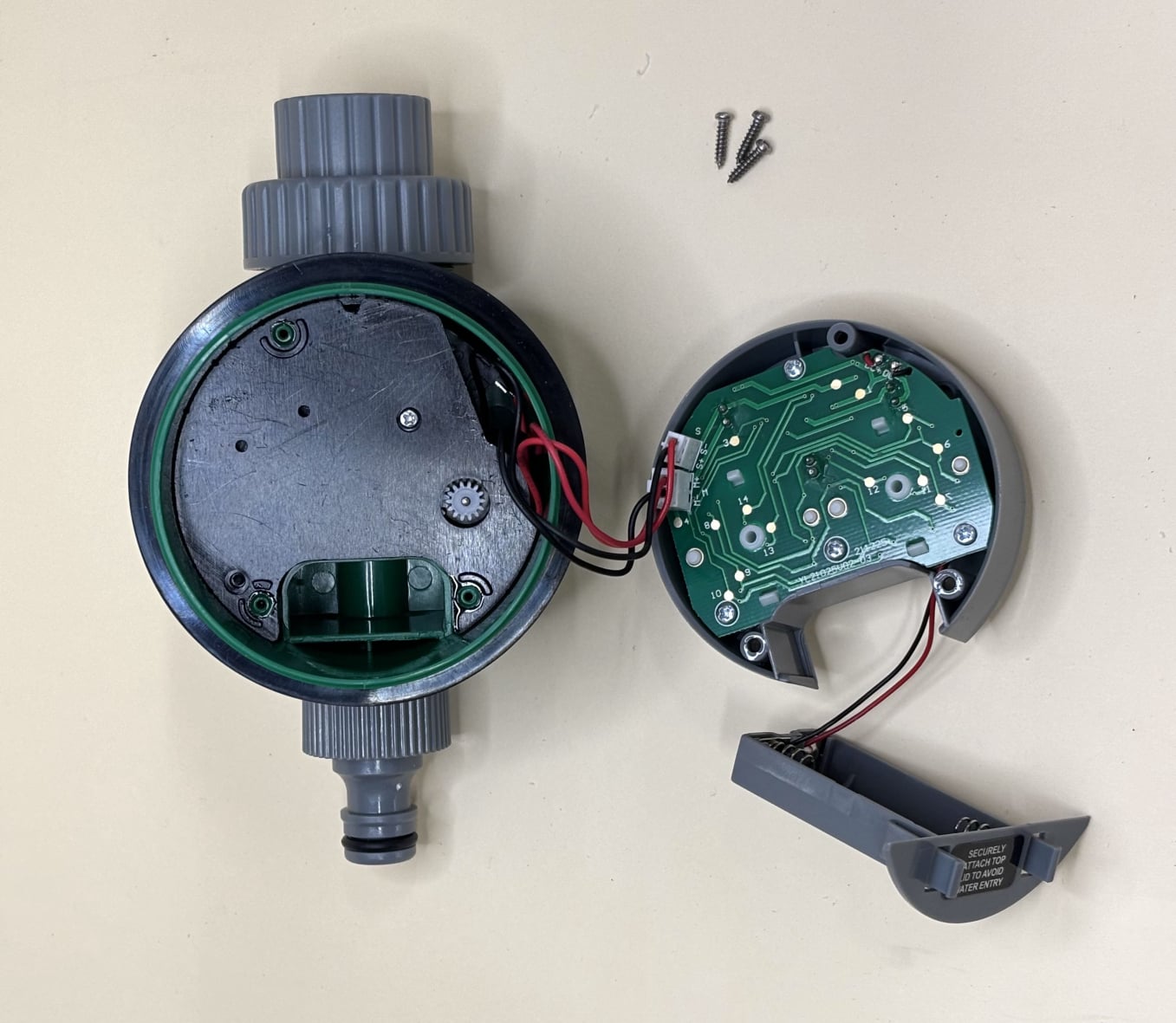
Open the battery compartment by releasing the two spring clips on either side. You can then access and remove the three screws.

Once the screws are removed, you can lift out the electronics.


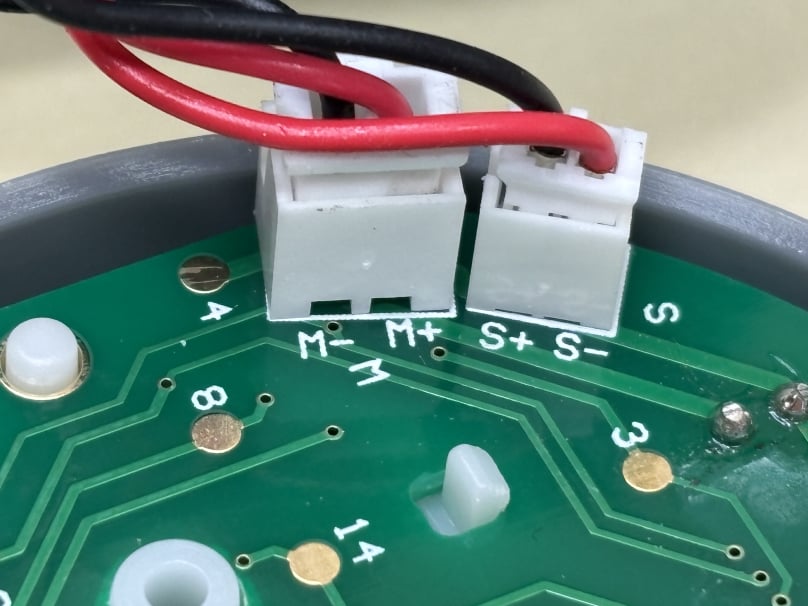
JST connectors

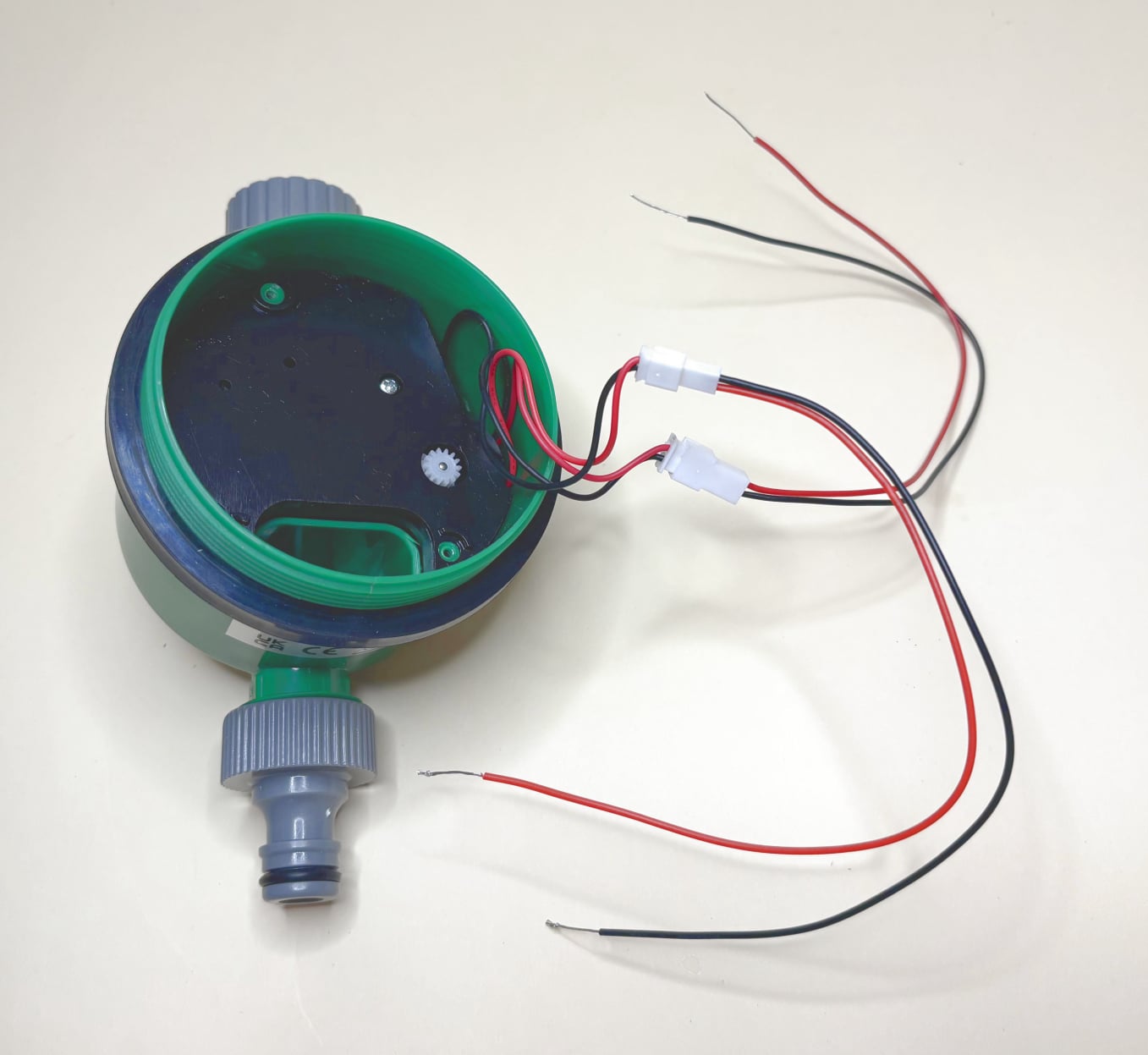
The electronics are still connected to the water timer by four wires. Two of these wires power the motor that opens and closes the valve. The other two are connected to a sensor that indicates whether the valve is open or closed.

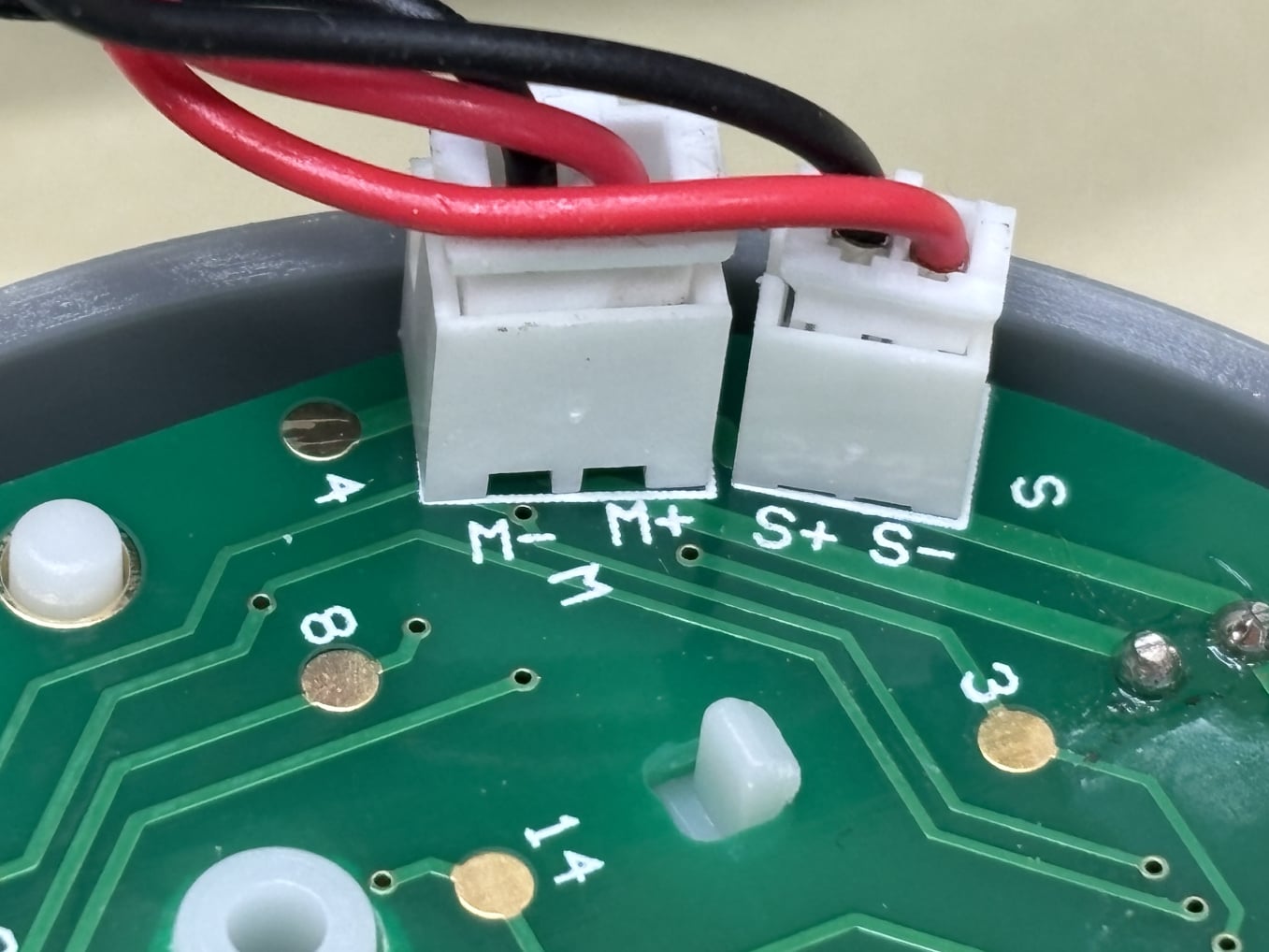
The wires are connected via two JST connectors, which are push-fit. Carefully separate the two halves of each connector.

Inspection of the connectors shows that the motor connector is a 2.5 mm JST-XH connector rated for up to 3.0 amps. The sensor connector is a 2.0 mm JST-PH connector rated for up to 2.0 amps.

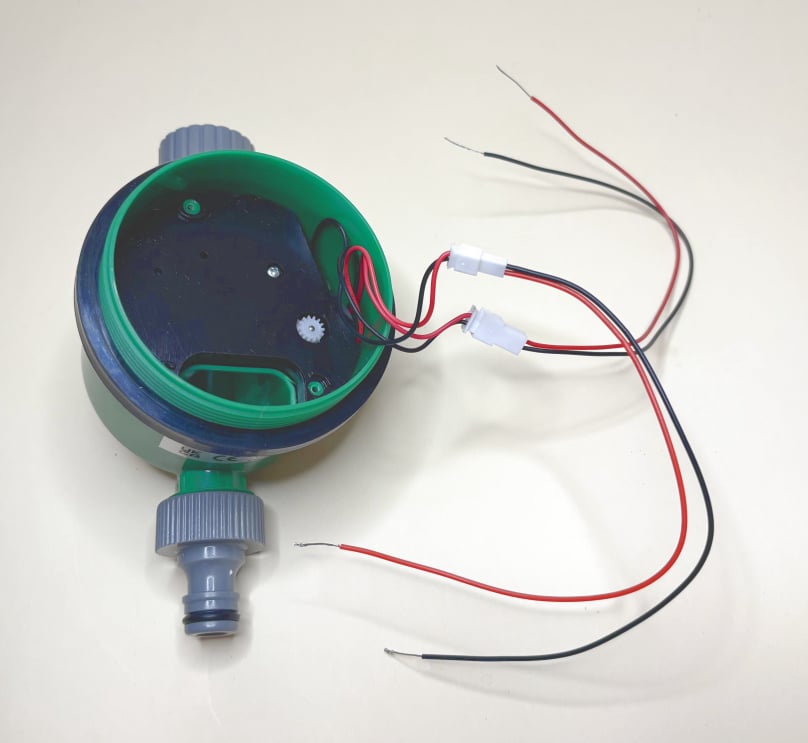
JST tails connected

Assemble and connect our own LoRa connected electronics.

We can now begin replacing the water timer electronics with our own. Connect a 2.5 mm JST-XH connector and a 2.0 mm JST-PH connector to the corresponding JST connectors on the water timer. The attached wires will allow us to connect the water timer to the rest of the electronics.

Please note that when you attach the 2.0 mm JST-PH connector, the red and black wire colours are reversed. Keep this in mind when connecting other components. Also, ensure that you have stripped back enough insulation to allow proper contact with the connector blocks.

Now assemble the rest of the circuitry as shown in the circuitry schematic above.


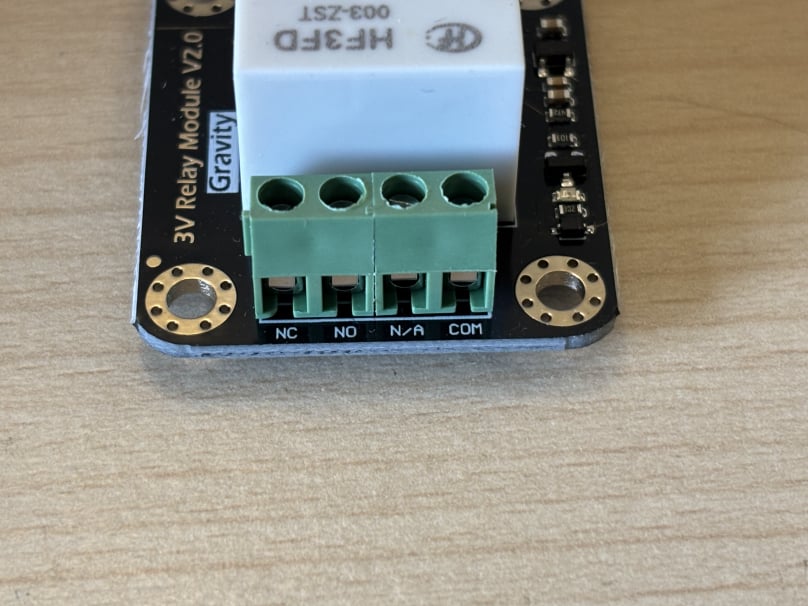
Relay top

Connect the relay

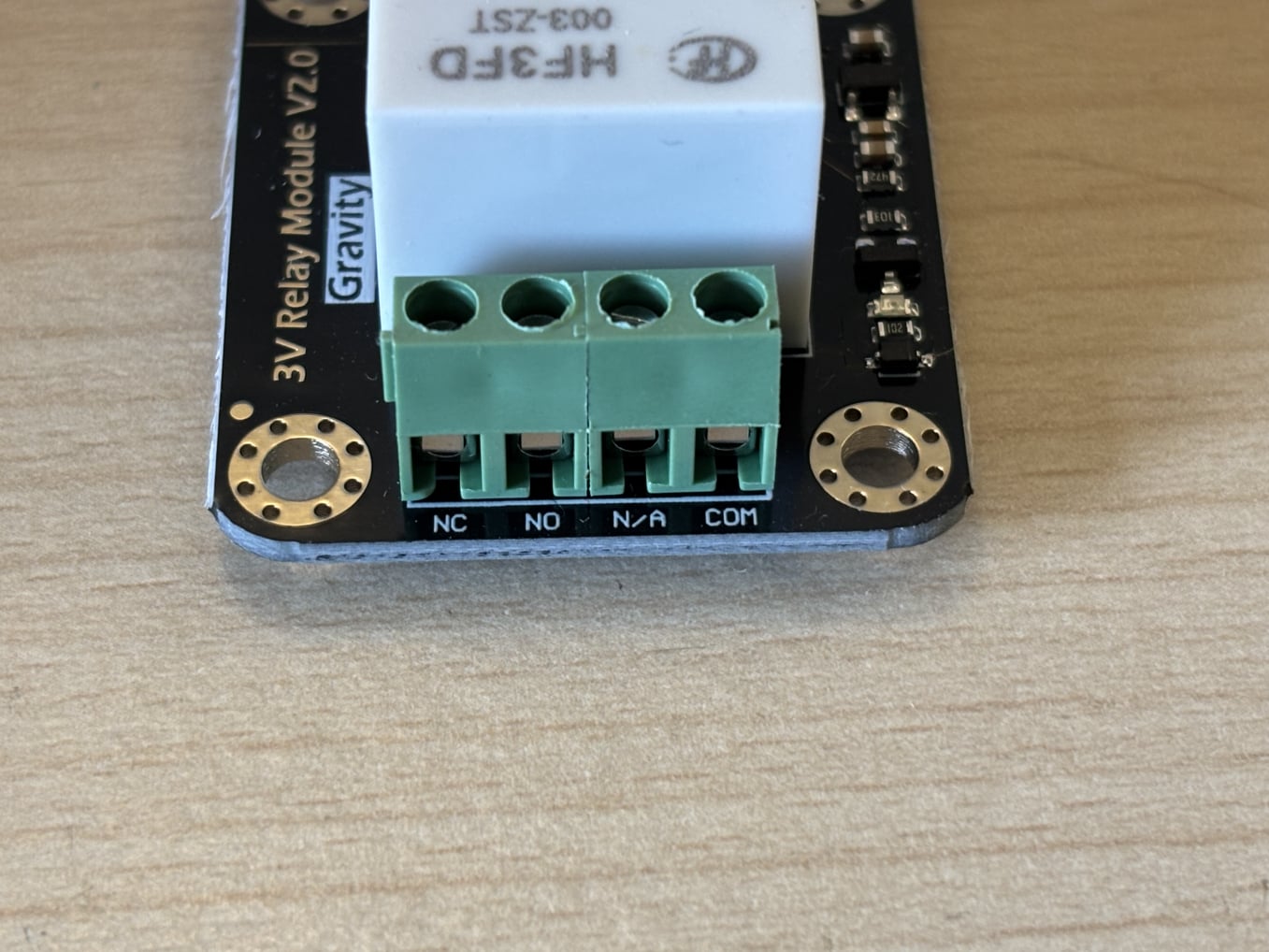
The water control valve is switched on and off by a relay, which is controlled by a sensor inside the water timer housing. We will be using the Gravity Digital 10A Relay Module:

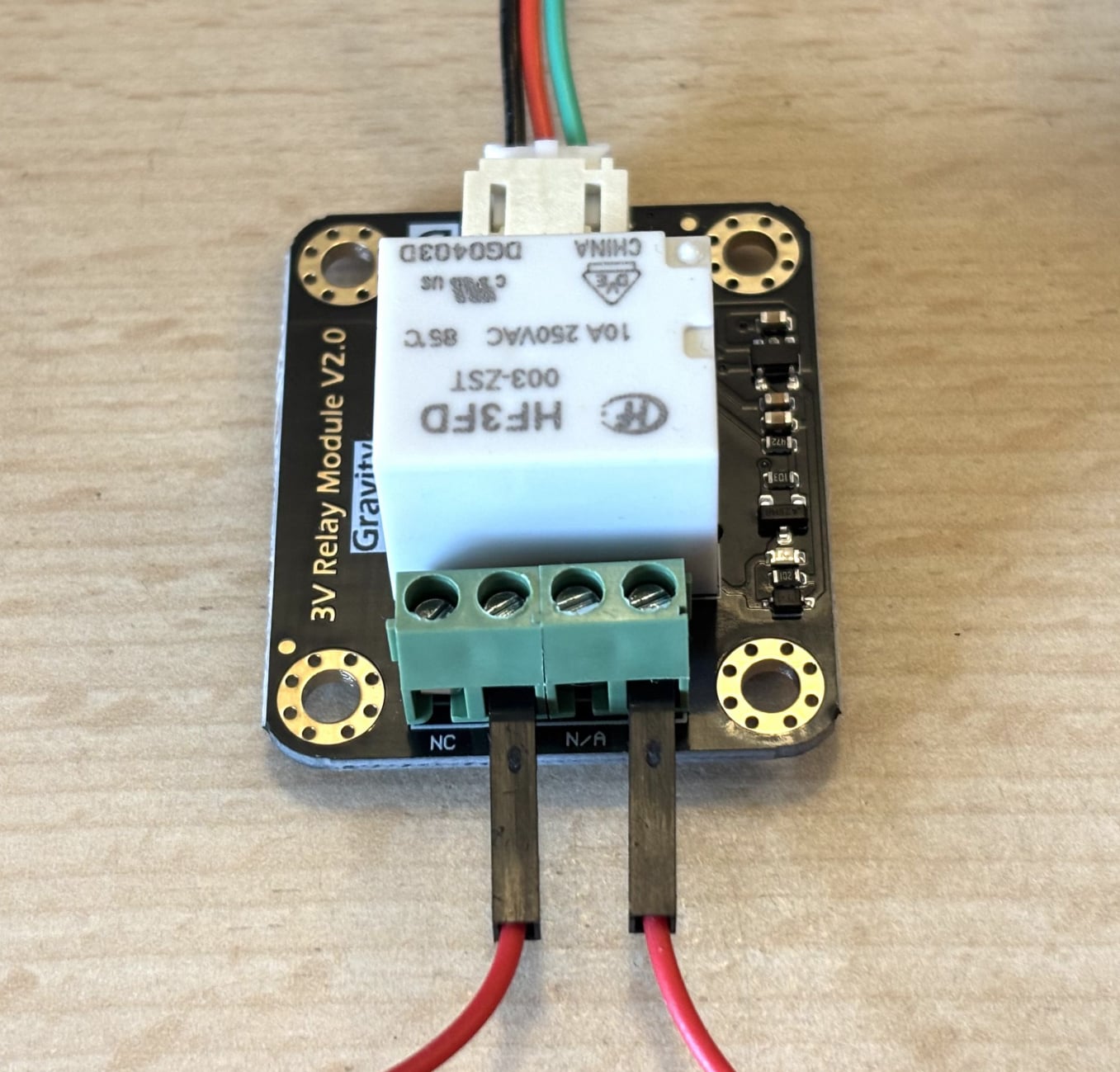
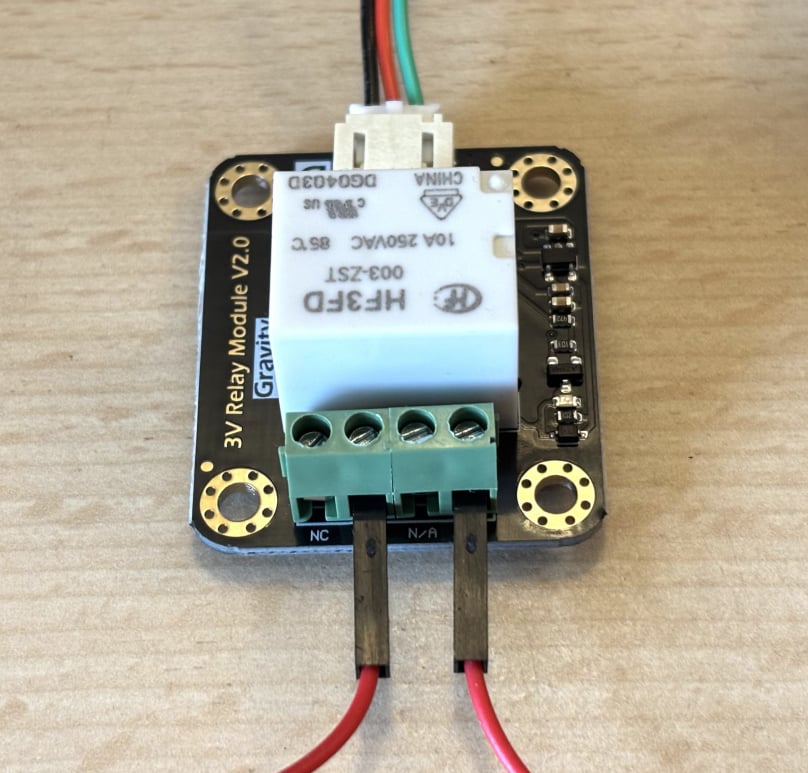
Connect jumper wires to the relay terminals marked NO and COM.

NO stands for Normally Open. When the relay is activated and the water control valve opens, the NO terminal is connected to the COM terminal. COM stands for Common and provides the shared connection used to complete the circuit when the relay closes.


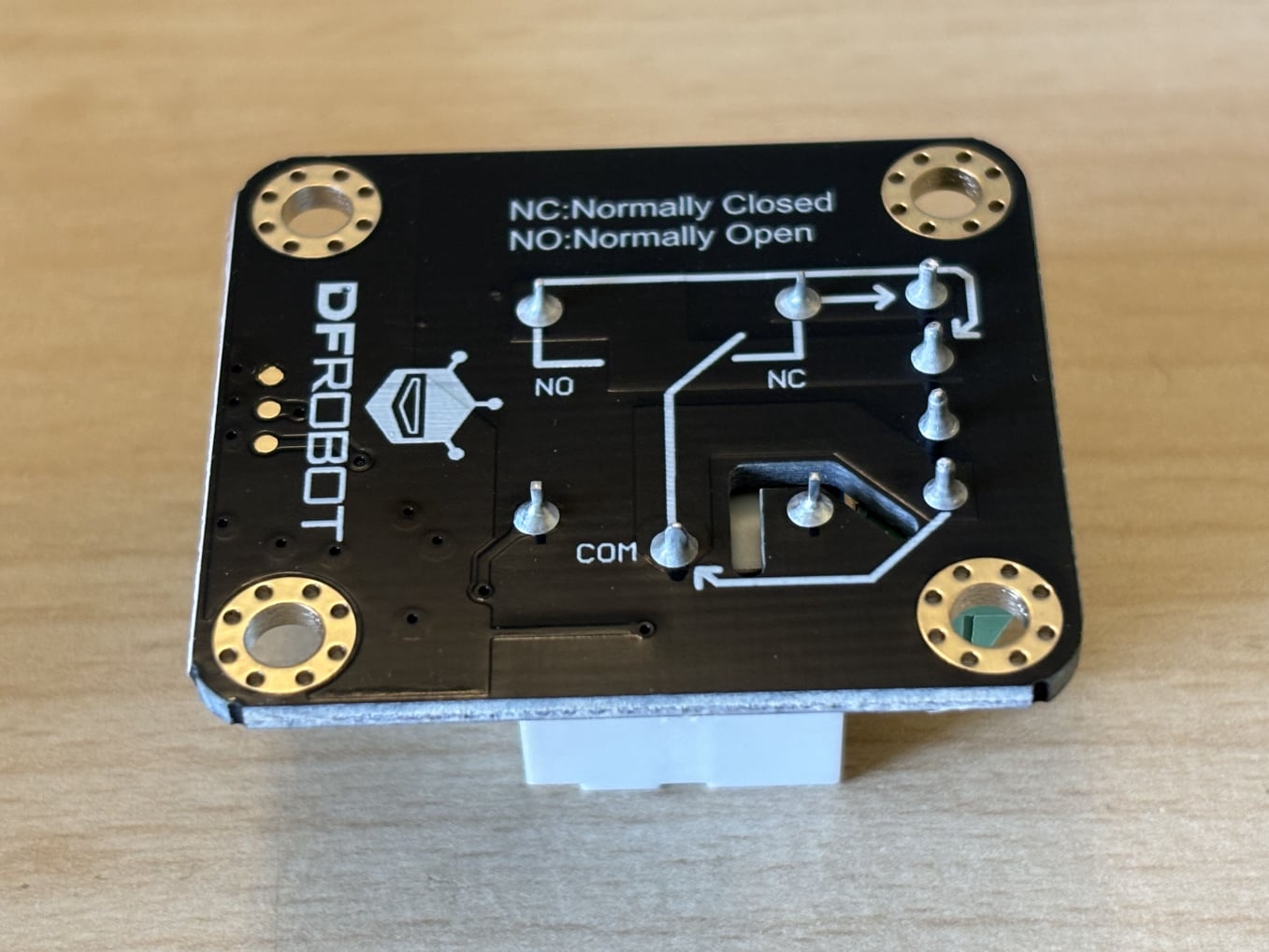
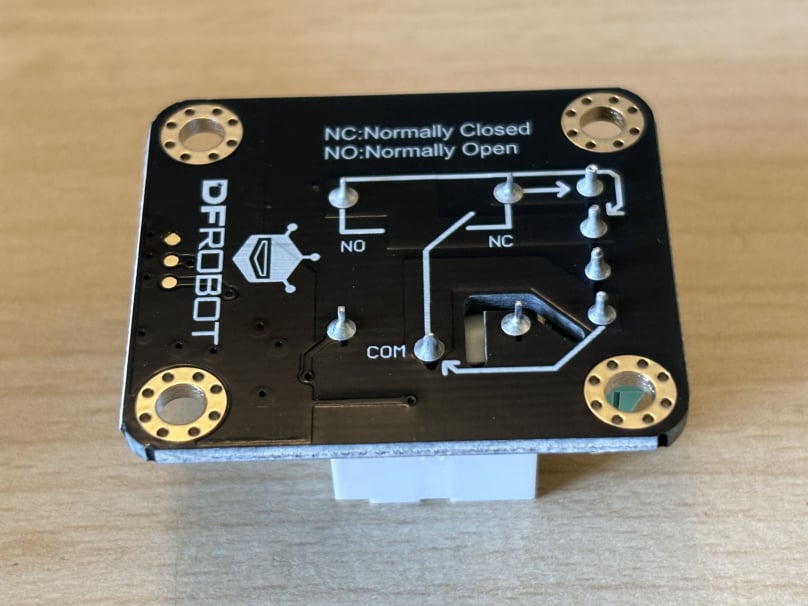
Relay underneath

If you now push the body of the water timer through the hole in the junction box and then screw back the cover, it should look like this.

The terminals marked NC (Normally Closed) and N/A (Not Connected) are not used in this application.

This illustration shows the underside of the relay and how the terminals are connected internally.


Connect sensor cable

The relay is supplied with a three-pin sensor cable. Plug this into the relay.

Attach jumper wires to the other end of the sensor cable. The green wire is the sensor wire and plugs into GPIO Pin 2 on the Arduino. The red and black wires are connected respectively to a positive and negative power supply using 2 in 8 out wire connector block.


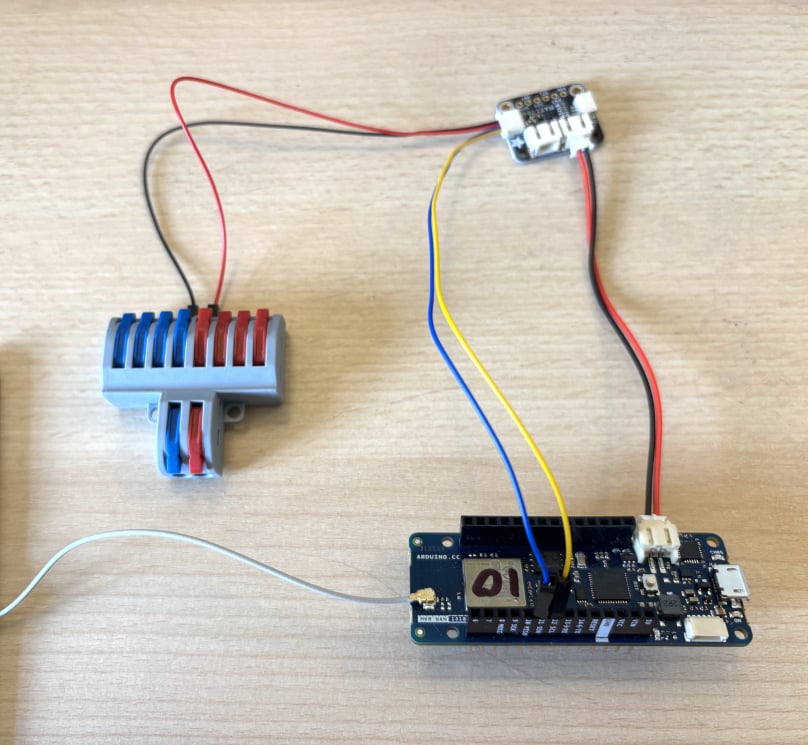
Connect the battery monitor

Connect the battery monitor

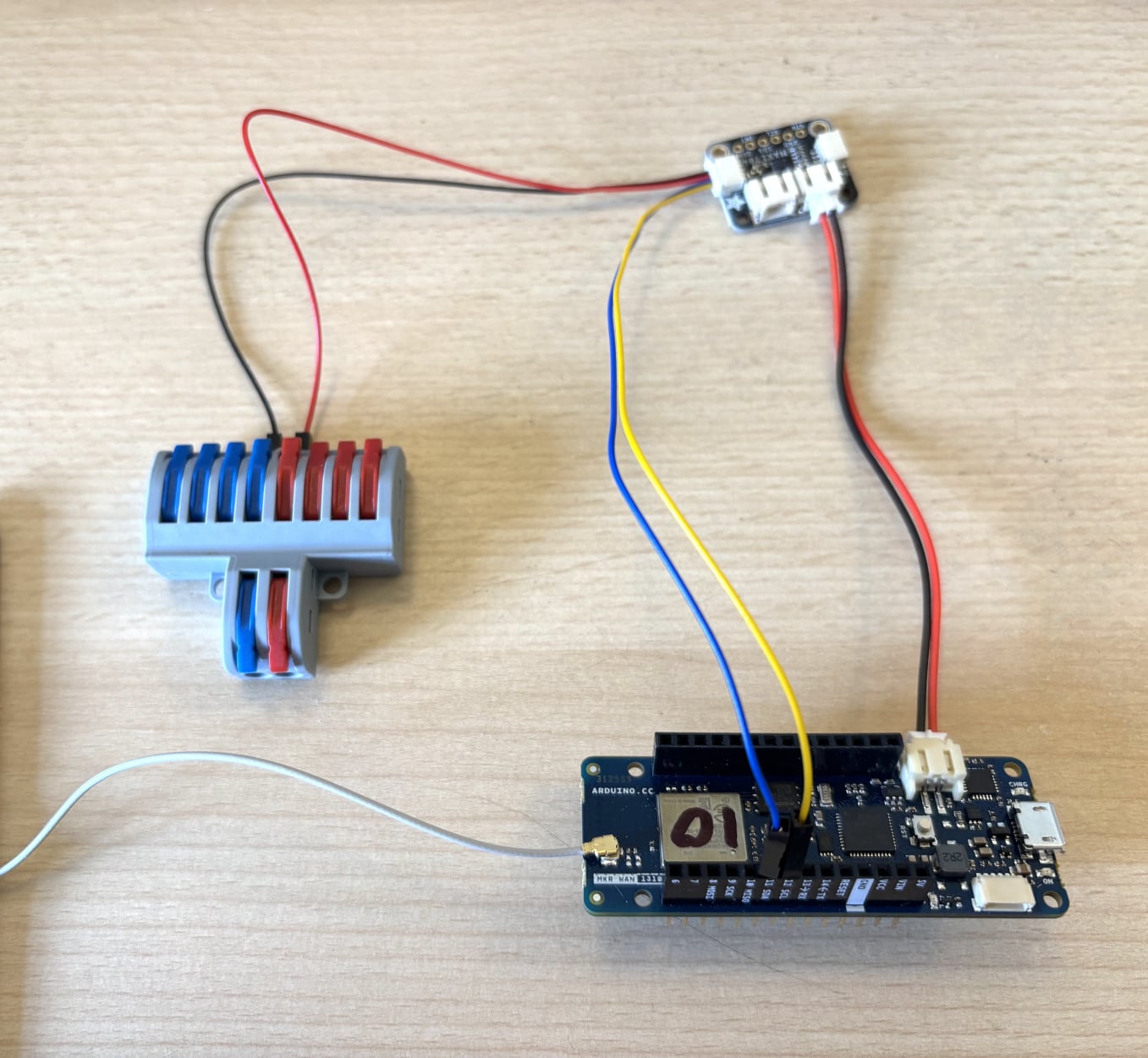
This is connected in a similar way to the tutorial on connecting and charging the Li Po battery https://loraworkshop.com/connecting-and-charging-the-li-po-battery.html. The only difference is that the battery monitor will connect the red and black wires respectively to a positive and negative power supply using the 2 in 8 out wire connector block. This is because the GND and VCC pins will form the input to the 2 in 8 out wire connector block.

The yellow wire is the ‘clock’ wire, and plugs into pin 12 SCL on the Arduino.
The blue wire is the data wire and plugs into pin 11 SDA.

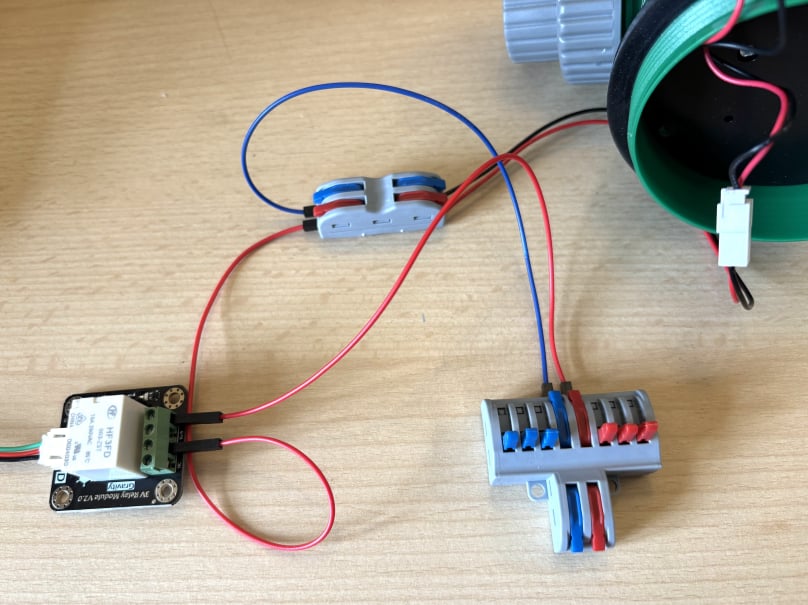
Connect water timer motor

Connect the water timer motor

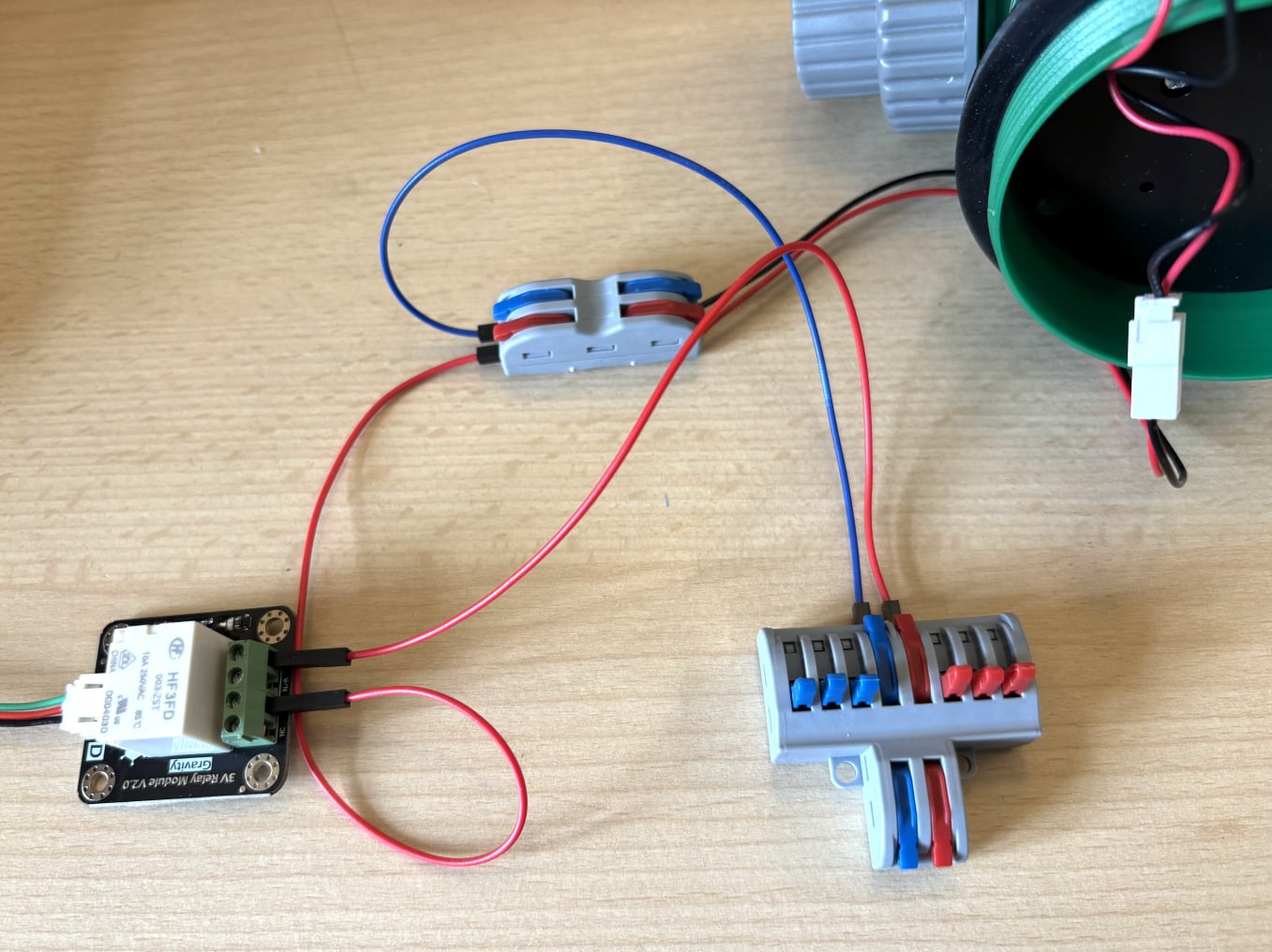
We have already connected jumper wires to the JST connectors on the water timer. These wires are connected to a 2-in 2-out connector block, allowing us to route the motor's negative wire to the 2-in 8-out connector block and the positive wire to the relay.

In the image, the white JST motor connector is linked to the 2-in 2-out connector block using red and black jumper wires. From this connector block, a blue wire connects the motor's negative wire to the 2-in 8-out connector block, while a red wire connects the positive wire to the relay. The relay's positive power supply is then connected to the 2-in 8-out connector block using another red wire.


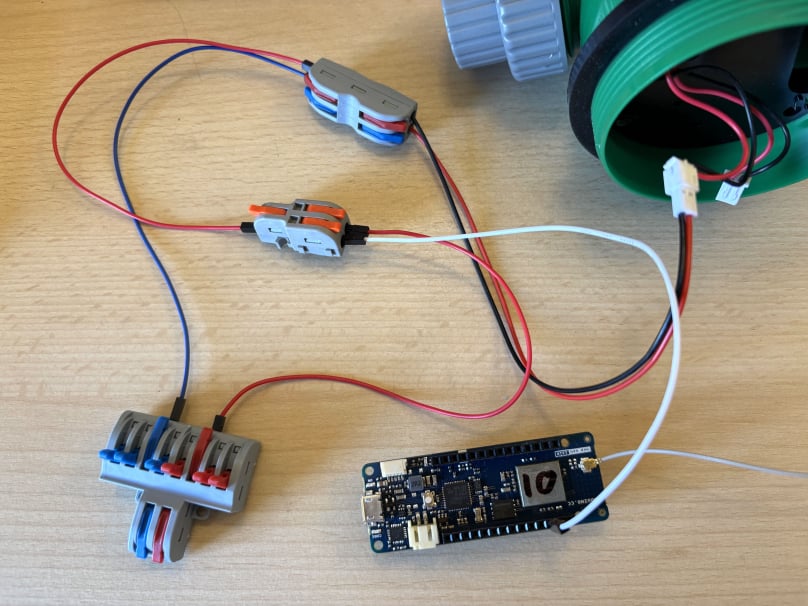
Connect the water timer sensor.

Note: In the instructions that follow, we have omitted the LED shown in the wiring schematic above. The LED was originally included to provide a visual indication when the water control valve was switched on. By omitting the LED, battery power can be conserved.

If you wish to retain this feature, connect a resistor and LED in series between the positive supply from the 2-in 8-out connector block and the 1-in 2-out connector block that supplies power to the sensor. 

Connect water timer sensor

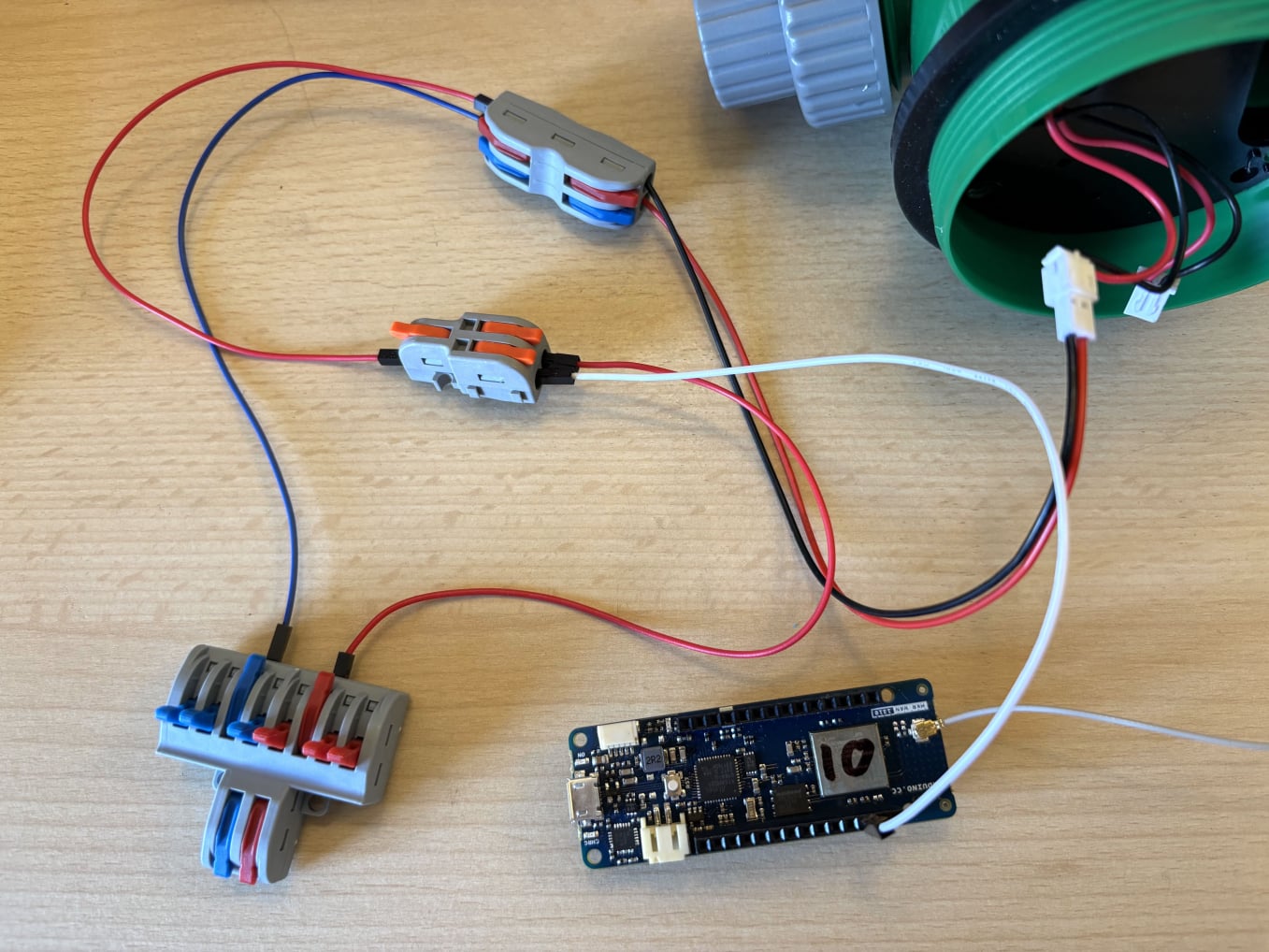
As with the motor, we have already connected jumper wires to the JST connectors on the water timer. The red positive wire is connected to a 1-in 2-out connector block. This allows a sensor wire to be connected to GPIO Pin 3 on the Arduino, enabling the system to detect whether the sensor is powered.
The red positive supply is then routed from the 1-in 2-out connector block to the 2-in 8-out connector block. The blue negative wire from the 2-in 2-out connector block is also connected to the 2-in 8-out connector block.

This image shows how the wiring should look once all connections have been completed. The wiring provides power to the sensor, which acts as a switch that remains open when the valve is closed. When the motor runs and opens the valve to allow water to flow, the sensor closes, allowing current to pass through and send a signal to Pin 3 on the Arduino. 

Note: this circuit does not feature the resistor. This is included in the next image.

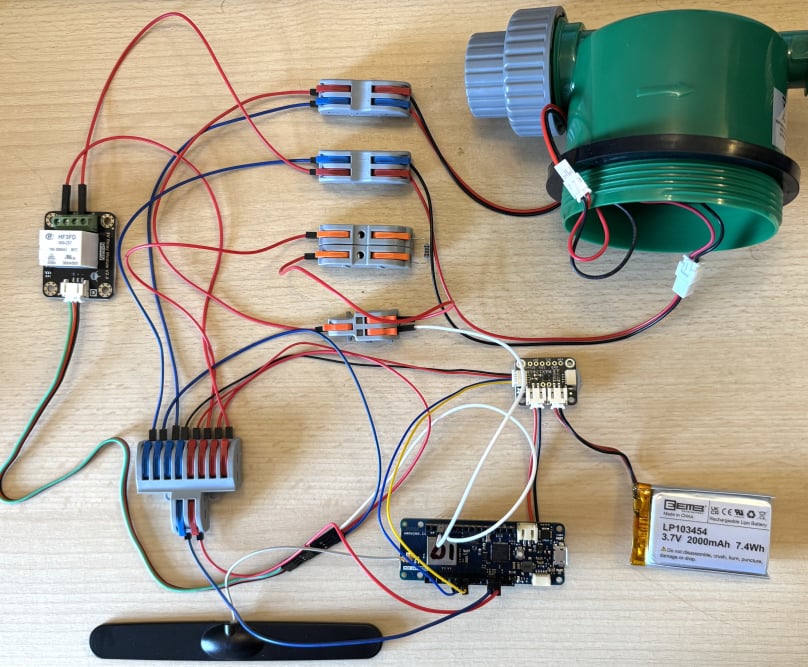
Assembled circuit


Connect everything together

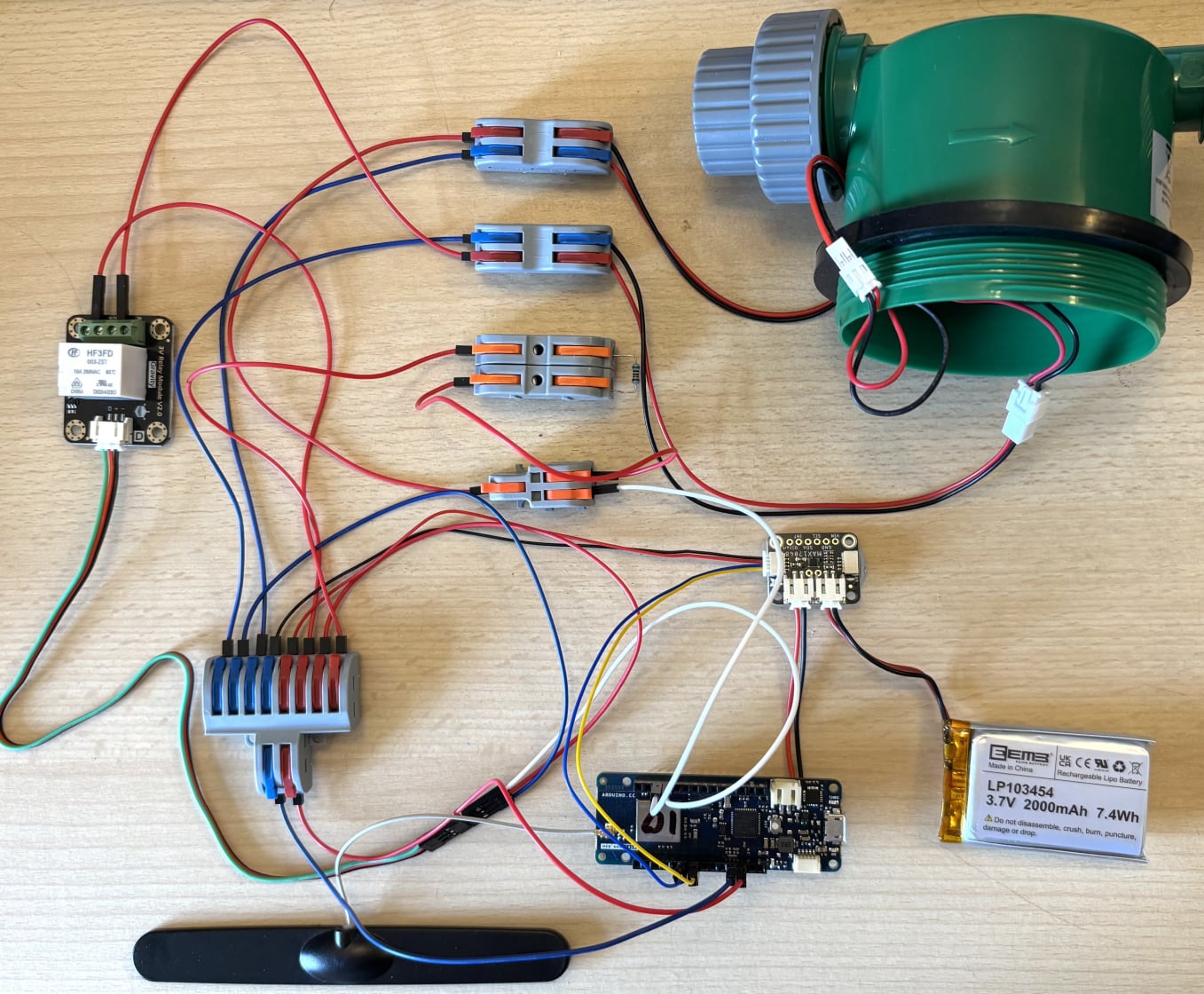
This image shows the final assembly.

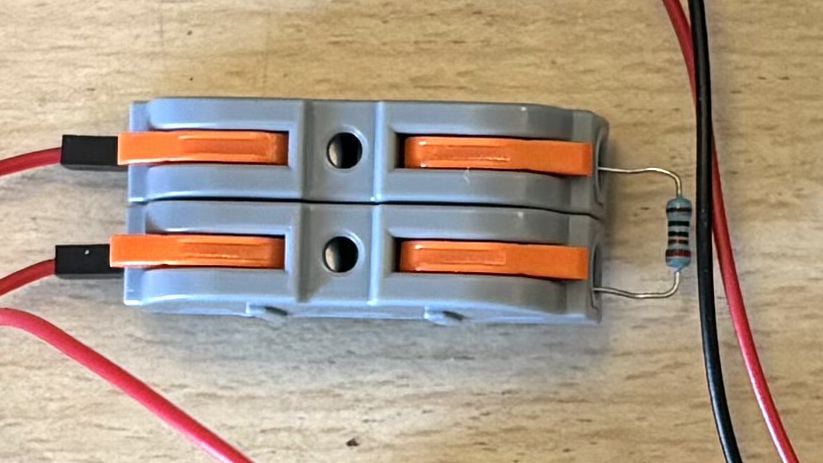
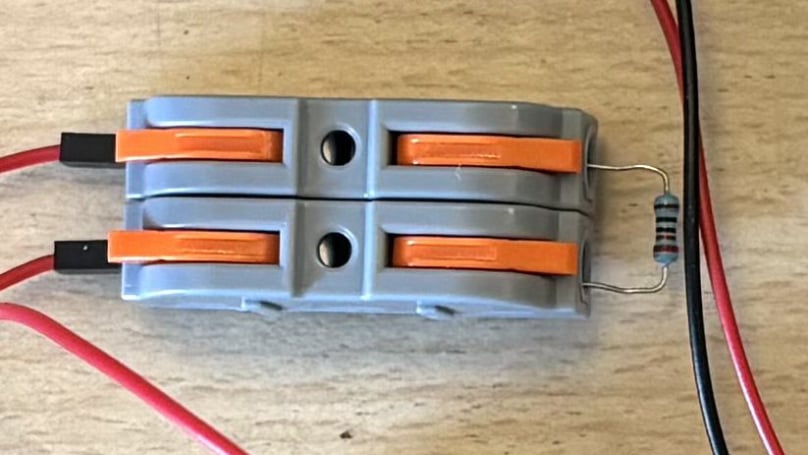
I have also made a change to the water timer sensor wiring by adding a 220 Ω resistor in series with the circuit. This was done as a precaution because, without any load in the circuit, closing the sensor switch could potentially create a short-circuit condition. The resistor limits the current flow and helps protect the circuit from excessive current.


Resistor assembly

To add the resistor, I used two 1-in-1-out wire connectors clipped together. The input and output connectors are positioned side by side, with the leads of the 220 Ω resistor acting as a bridge connecting them together.

Upload and test the sketch

With everything assembled we can see if it works. Connect the Arduino to your computer using the micro USB cable.

If you have not already done so, connect your Arduino to your TTN account. Click here for instructions.

We are now going to open a sketch in your Arduino IDE, which will receive downlinks in order to turn your water control valve on and off. Here is the sketch, but you can also download it from GitHub here. 

// For LoRa:
#include
// For battery monitor:
#include "Adafruit_MAX1704X.h"
Adafruit_MAX17048 maxlipo;
// For battery charger
#include
// For LowPower
#include "ArduinoLowPower.h"

LoRaModem modem;

// Please enter your sensitive data in the arduino_secrets.h tab
#include "arduino_secrets.h"

int dataBufferValue = 0; // Initialises a value for the dataBuffer which recieves downlinks to turn on the water control valve.

// initialises a variable for battery state of charge:
int cellPercent = 0; //LoRa payload needs integers.

// initialises a variable to report water valve open or closed:
int valveState = 0; //LoRa payload needs integers.

// We need the details below to connect your device to LoRa
// Read arduino secrets
String appEui = APP_EUI;
String appKey = APP_KEY;

const int motorPin = 2; // Motor control pin
const int sensorPin = 3; // Sensor pin detects valve ON or OFF

void setup() {
// Put your setup code here, to run once:

pinMode(motorPin, OUTPUT);
pinMode(sensorPin, INPUT_PULLUP);//Set pin 3 as INPUT PULL-UP

// Start of battery charger code...
if (!PMIC.begin()) {
Serial.println("Failed to initialize PMIC!");
while (1);
}

// Set the input current limit to 2 A and the overload input voltage to 3.88 V
if (!PMIC.setInputCurrentLimit(2.0)) {
Serial.println("Error in set input current limit");
}

if (!PMIC.setInputVoltageLimit(3.88)) {
Serial.println("Error in set input voltage limit");
}

// set the minimum voltage used to feeding the module embed on Board
if (!PMIC.setMinimumSystemVoltage(3.5)) {
Serial.println("Error in set minimum system voltage");
}

// Set the desired charge voltage to 4.11 V
if (!PMIC.setChargeVoltage(4.2)) {
Serial.println("Error in set charge voltage");
}

// Set the charge current to 375 mA
// the charge current should be defined as maximum at (C for hour)/2h
// to avoid battery explosion (for example for a 750mAh battery set to 0.375 A)
if (!PMIC.setChargeCurrent(0.375)) {
Serial.println("Error in set charge current");
}
Serial.println("Initialization done!");

if (!PMIC.enableCharge()) {
Serial.println("Error enabling Charge mode");
}
// End of battery charger code.

//Initialize serial communication at 9600bps
Serial.begin(9600);
while (!Serial && millis() < 10000); //This line is needed to work with batteries https://forum.arduino.cc/t/it-does-not-work-powered-by-2xaa-batteries/520097/5

// The code below connects your device to LoRa
if (!modem.begin(EU868)) { // change this to your regional band (eg. US915, AS923, ...)
Serial.println("Failed to start module");
while (1) {}
};

Serial.print("Your module version is: ");
Serial.println(modem.version());
Serial.print("Your device EUI is: ");
Serial.println(modem.deviceEUI());
int connected = modem.joinOTAA(appEui, appKey);

// Start of battery monitor code...
Serial.println(F("\nAdafruit MAX17048 simple demo"));

if (!maxlipo.begin()) {
Serial.println(F("Couldnt find Adafruit MAX17048?\nMake sure a battery is plugged in!"));
while (1) delay(10);
}
Serial.print(F("Found MAX17048"));
Serial.print(F(" with Chip ID: 0x"));
Serial.println(maxlipo.getChipID(), HEX);
// ...end of battery monitor code.

if (!connected) {
Serial.println("Something went wrong; are you indoors? Move near a window and retry");
while (1) {}
}

// For downlink
//modem.minPollInterval(60); // Default is 300s
Serial.println("Waiting for messages...");
}

void loop() {
// put your main code here, to run repeatedly:

// Check for downlinks
modem.poll();

// On The Things Stack the RX1 window is 5s which is the earliest moment
// to receive any downlink data. We add 1500ms to allow for the transmission of the data to complete.
delay(5000 + 1500);

char dataBuffer[64]; // Initialise the dataBuffer to collect the downlink that turns the control valve on.

if (!modem.available()) {
Serial.println("No downlink message received at this time.");
dataBuffer[0] = 00; // Set the dataBuffer to 0, or, after the first downlink, the water control valve will switch itself back on each time the program loops.
// Change valveState from 1 to 0 so we can see the valve is off.
valveState = 0;
//return;
}

int i = 0; // If a downlink is received, the lines below assign a value.
while (modem.available()) {
dataBuffer[i++] = (char)modem.read();
}

Serial.print("Received: ");
for (unsigned int j = 0; j < i; j++) {
Serial.print(dataBuffer[j] >> 4, HEX);
Serial.print(dataBuffer[j] & 0xF, HEX);
Serial.print(" ");
}
Serial.println();

// This runs the code to turn the valve on or off. It is controlled from a downlink (with a value of 1) and then runs just once.
if(dataBuffer[0] == 1){
runValveSequence();
// Change valveState from 0 to 1 so we can see the valve is on.
valveState = 1;
Serial.println("Sequence has been activated");
}

Serial.print("dataBuffer value is ");
dataBufferValue = dataBuffer[0];
Serial.println(dataBufferValue); // So we can check which value has been received.
// End of downlink code

// Start of battery monitor code...
cellPercent =(maxlipo.cellPercent());
Serial.print(F("Batt Voltage: ")); Serial.print(maxlipo.cellVoltage(), 3); Serial.println(" V");
Serial.print(F("Batt Percent: ")); Serial.print(maxlipo.cellPercent(), 1); Serial.println(" %");
Serial.println();
// ...end of battery monitor code.

// We can now send data to The Things Network
byte payload[2]; // The [2] means we are sending two items in the array. Arrays start at zero.
payload[0] = valveState ; // Sends the state of the water control valve.
payload[1] = cellPercent; // Send state of charge by LoRa.

delay(1000); // Gives it time to execute.

modem.beginPacket();
modem.write(payload,2); // The number after the word 'payload' is the number of items sent in the array above. If you add another item, increment this number.
int err = modem.endPacket(false);
if (err > 0) {
Serial.println("Data Sent");
} else {
Serial.println("Error");
}
Serial.print("data sent is: ");
Serial.print("valve state is: "); Serial.println(valveState);
Serial.print("battery % is: "); Serial.println(cellPercent);
// End of data sending code

//LowPower.deepSleep(60000); // 10 minute intervals
//delay(60000); // This is the interval between each temperature and state of charge reading. The default is five minutes.
delay(30000); // We can use 30 seconds for testing.

Serial.println("End of loop code.");
}

void runValveSequence() {
// Turn off the motor if it is running
digitalWrite(motorPin, LOW);

// Step 1: Turn valve ON
while (digitalRead(sensorPin) == HIGH) {
digitalWrite(motorPin, HIGH);
delay(100);
// Wait until valve is ON
}
digitalWrite(motorPin, LOW);
Serial.println("Valve is open - water flowing");

// Step 2: Wait 20 seconds leaving the valve ON
// This is the length of time the water will be on for. It can be hard coded in the line below.
// Or it could be set to be a variable and then controlled by a downlink from Datacake
delay(20000);

// Step 3: This session has finished, turn valve OFF
while (digitalRead(sensorPin) == LOW) {
digitalWrite(motorPin, HIGH);
delay(100);
// Wait until valve is OFF
}
digitalWrite(motorPin, LOW);
Serial.println("Valve is closed - water off");
// Sequence complete
} 
Here is that GitHub link again: https://github.com/DoctorDulcamara/MKRWAN-water-control-MAX17048-Charger-Lowpower.

Pay attention to these lines of code:

//LowPower.deepSleep(600000); // 10 minute intervals
//delay(300000); // This is the interval between each temperature and state of charge reading. The default is five minutes.
delay(30000); // We can use 30 seconds for testing.


There are three delay options here. As it stands, the sketch will run every 30 seconds. This is fine for checking that everything is working. When you are ready to use your device in production mode, comment out the 30 second line and uncomment the top line that starts ‘LowPower’. The delay here is 10 minutes, but you can change this to suit your requirements. 

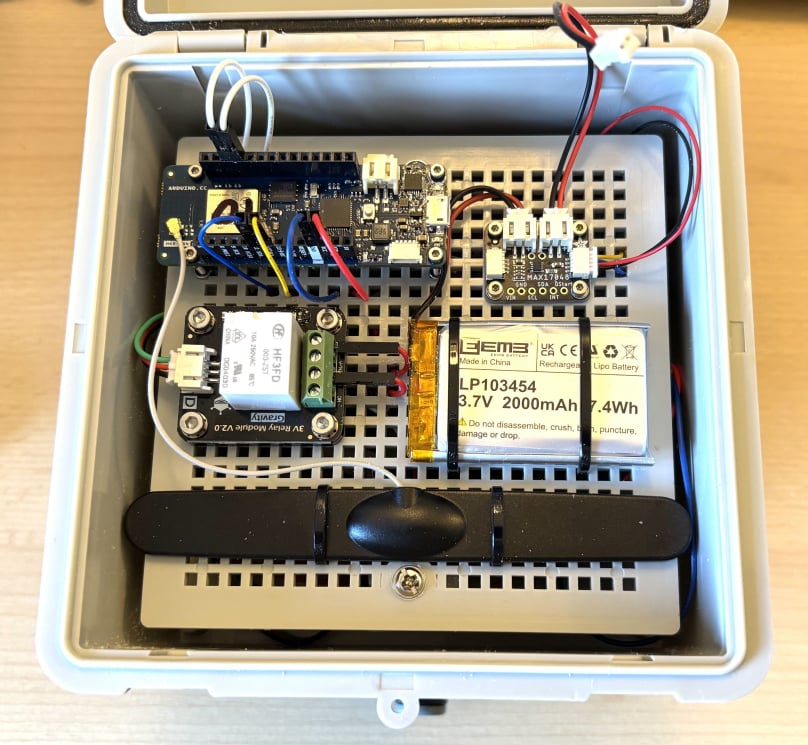
Assemble board


Assemble all components on the junction box mounting plate

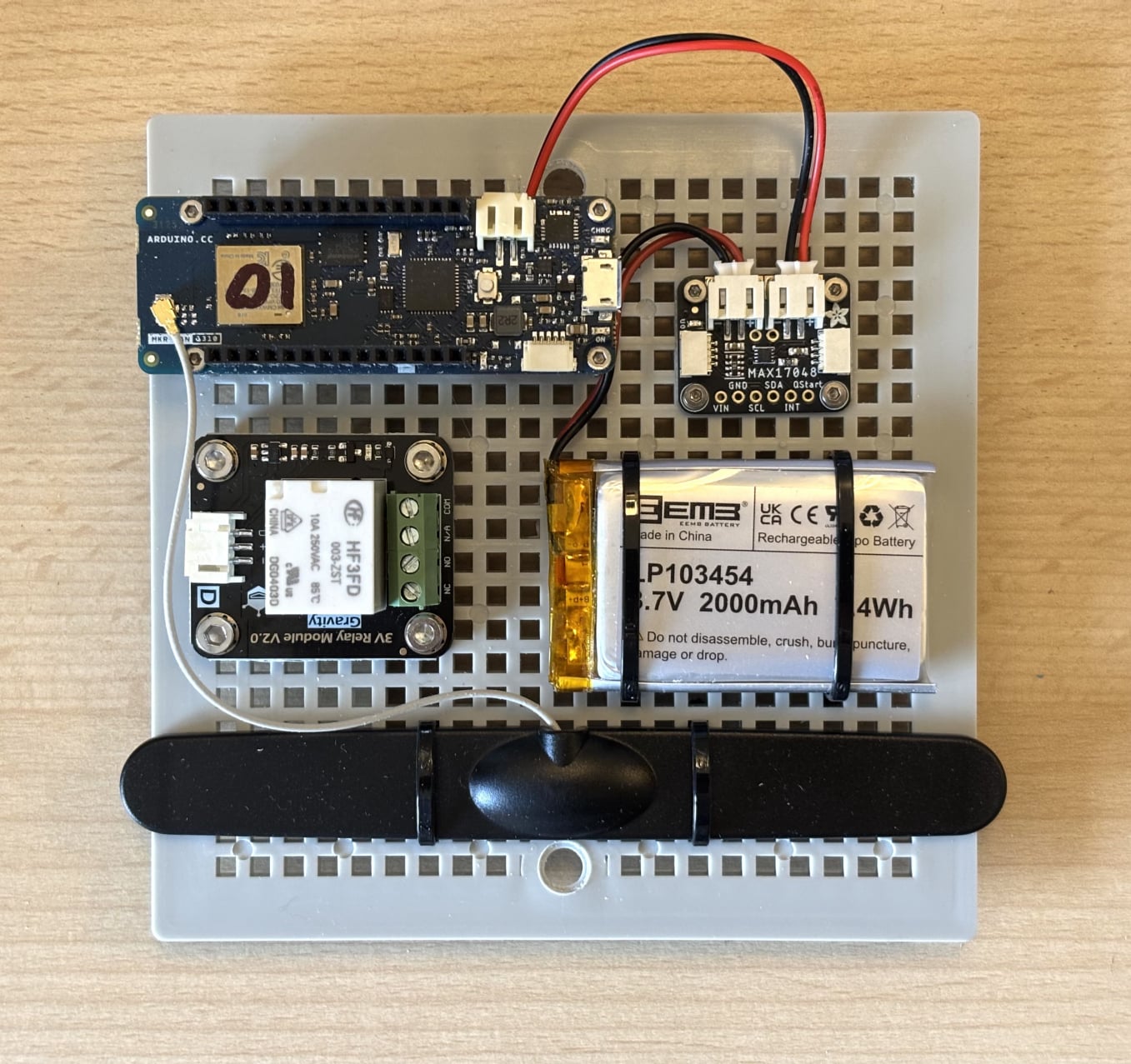
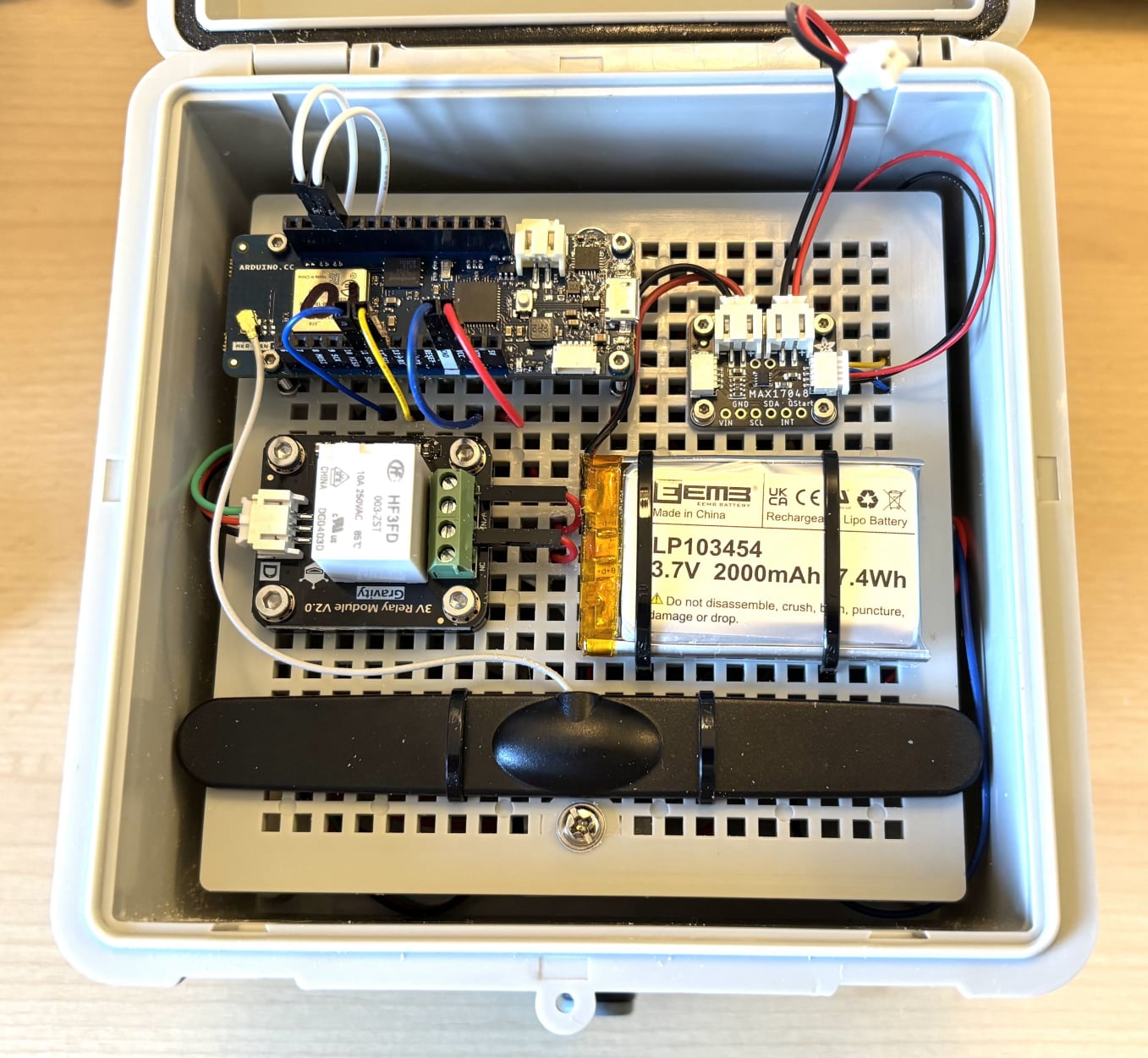
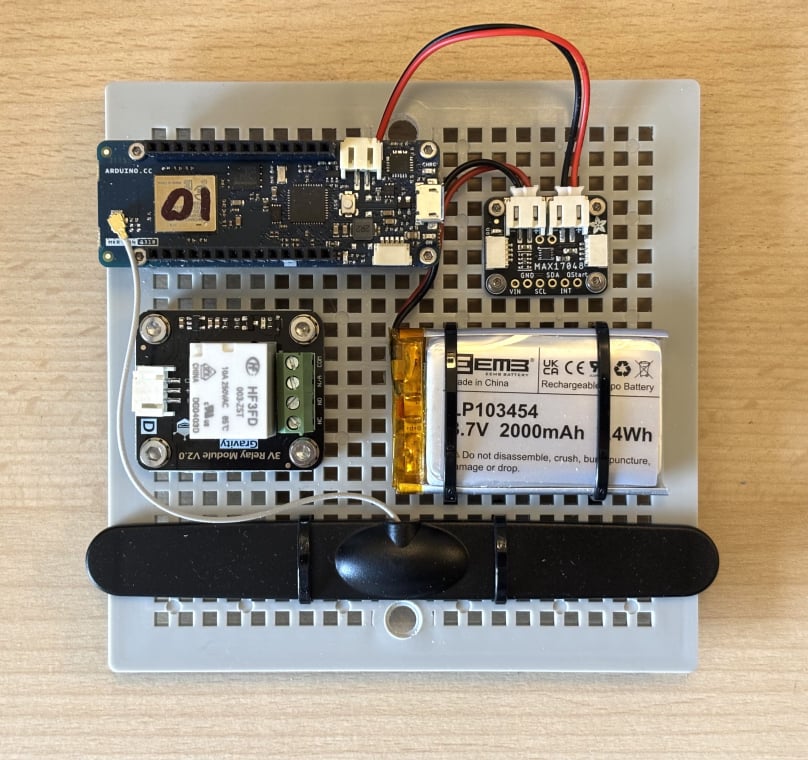
Start by assembling the Arduino MKR WAN, the battery monitor, the battery, the relay, and the Arduino antenna on to the junction box mounting board.

You can attach the battery and antenna using cable ties. All the other components were attached using machine screws, nuts and washers. See ‘Equipment’ section above. 

Tip: some of the nuts and washers are small and difficult to handle, especially the M2 nuts and washers. They become much easier to pick up using a pea sized piece of Blue Tack or similar.

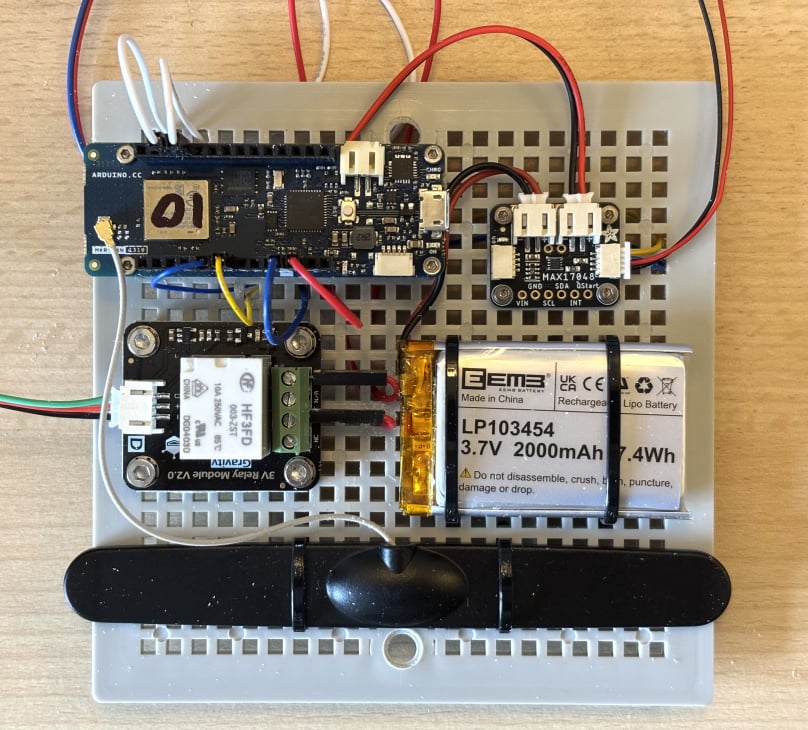
Board assembly with wires

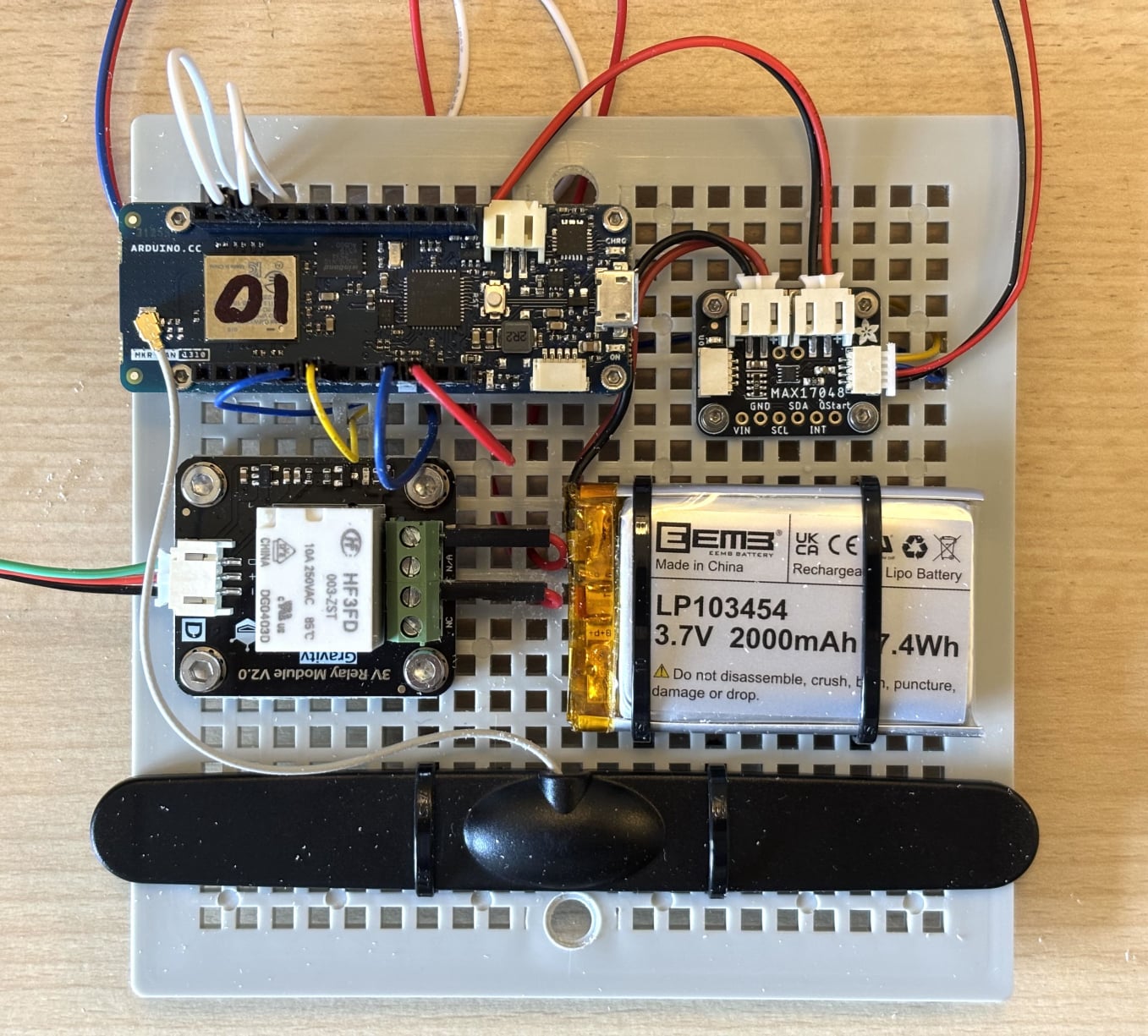
All the connectors will be left loose under the mounting board. But we still have to connect the jumper wires to the surface mounted components. To keep it tidy, we will be passing some of the jumper wires up through the holes in the mounting board. These include:

• The jumper wires between the motor and the relay, which connect to the NO and COM terminals.
• The jumper wires between the Arduino GND and VCC pins and the 2 in 8 out connector.
• The jumper wire between the relay and Arduino pin 2.
• The jumper wire between the motor and Arduino pin 3
• The clock and data wires that connect the battery monitor with Arduino pins SCL and SDA pins respectively.

The other wires, the relay sensor cable and battery monitor cable, can just pass round the edge of the mounting board.

This is what the mounting board looks like with all components and wires connected. 

Live data

We can now test water control valve again. Provided there is charge in the battery, all we should need to do is attach the JST-PH 2-pin jumper cable from the battery monitor to the battery terminal on the Arduino.

We have already uploaded the sketch, which should be set to loop every 30 seconds.

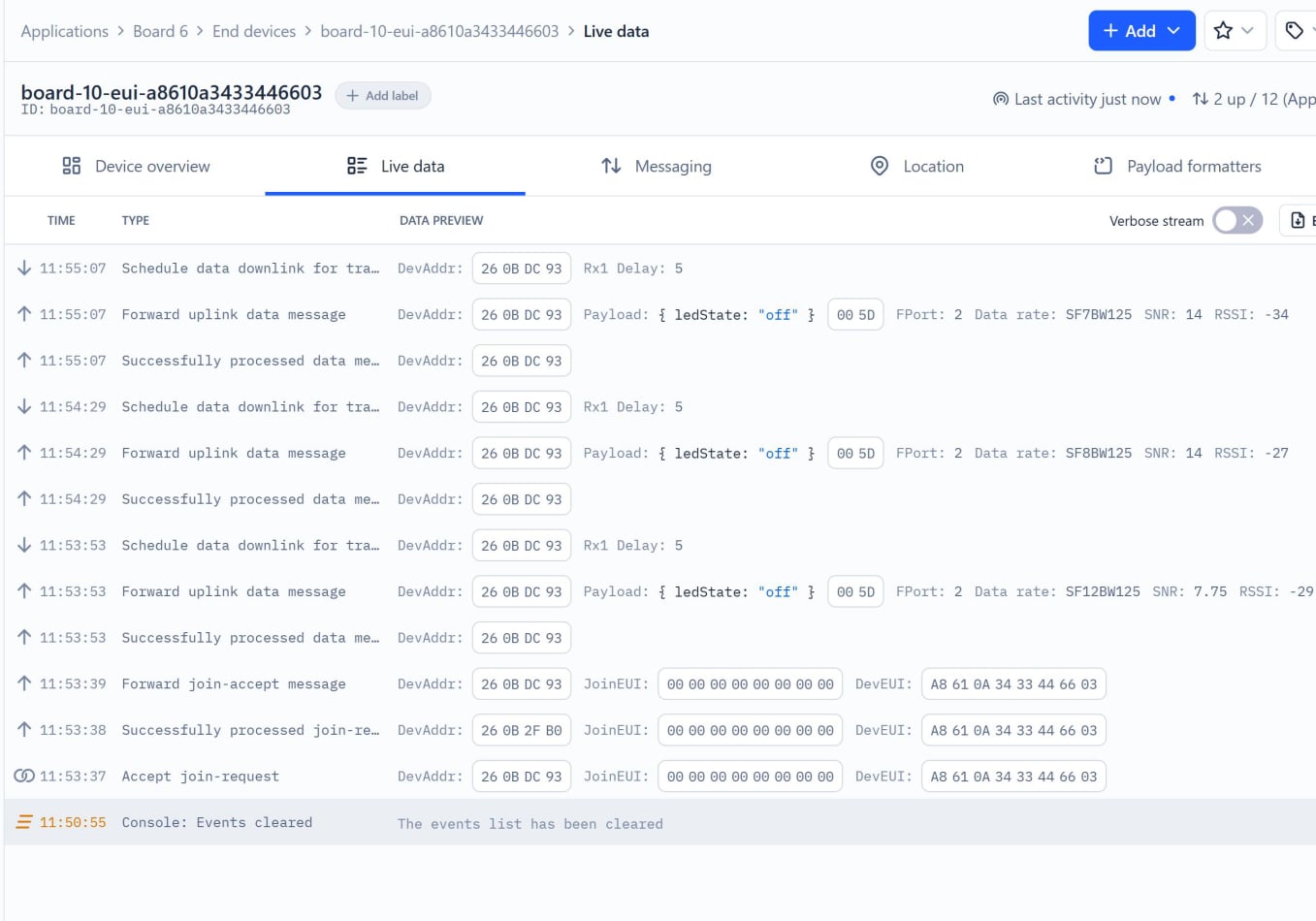
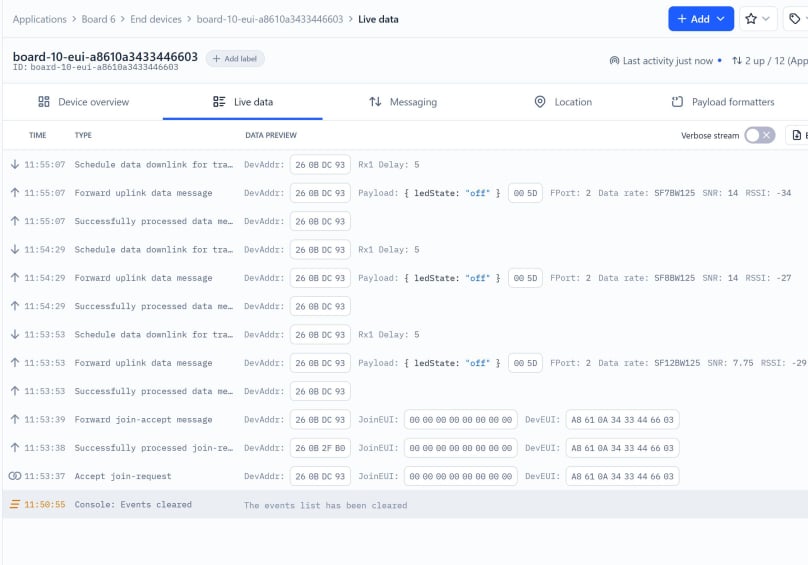
Connect the battery and go to your TTN account. Go to Applications and find your End device. Click on the Live data tab. You should see something like this.

This just demonstrates that the water control valve is connecting to your TTN account using LoRa. The information sent is just the default settings in your payload formatter. What we need to do now is check the download link, which will activate the water valve.


Test downlink

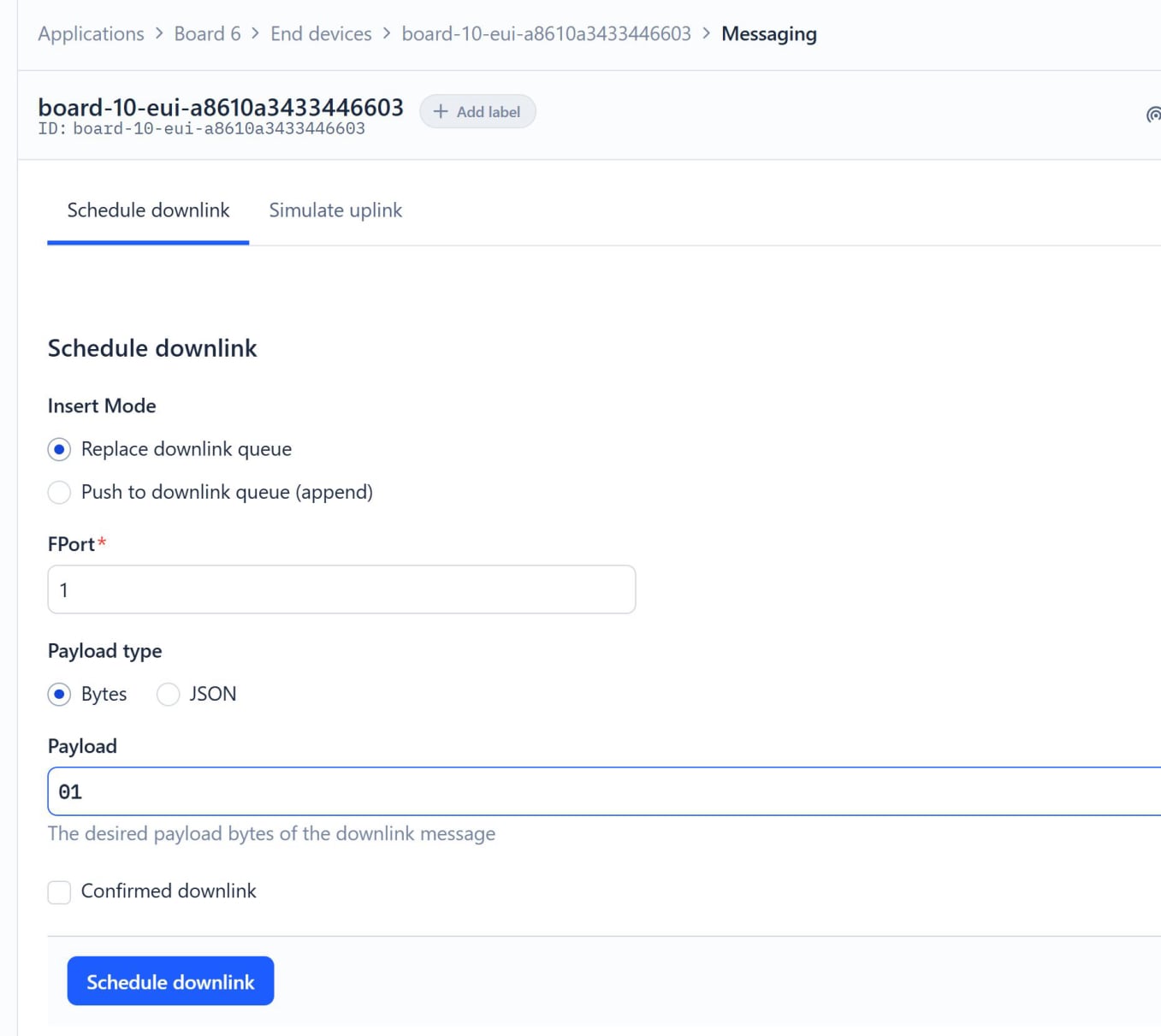
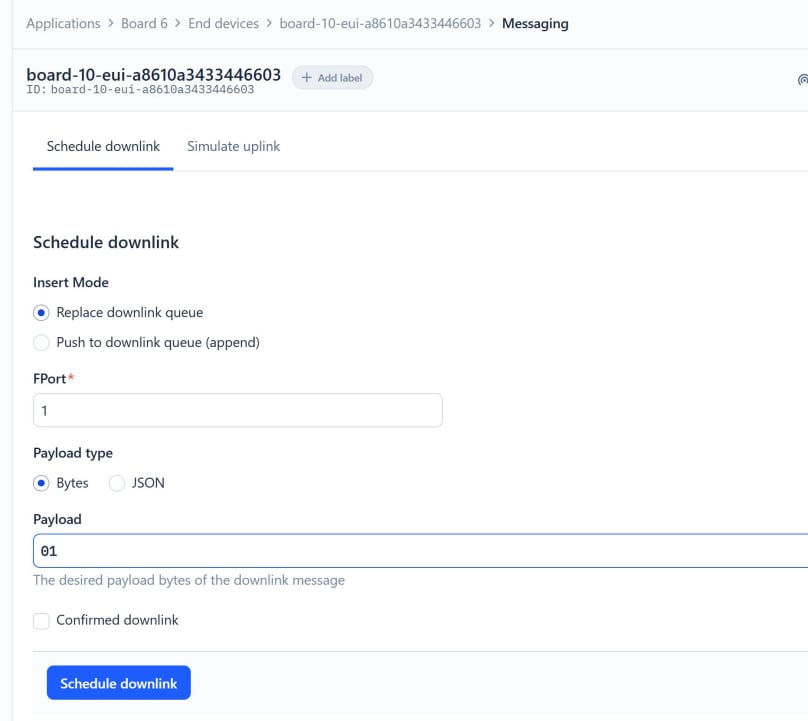
Now, click on the Messaging tab. From here you can send a downlink to your device. In the Payload box, type 01. This is the hexadecimal number that your water valve is expecting to turn it on. 

Click the blue Schedule downlink button.

If you return to Live data, you should see that the download has been sent.
Within thirty seconds, you should hear the valve open, wait for five seconds, and then close again.

When the valve opens, the indicator light on the relay will switch on. If you remove the fittings from the inlet side of the water controller, you will be able to see the valve opening and closing.

These time intervals are just for testing purposes. When deployed, we need to set longer intervals between receiving the downlinks and the watering time. 

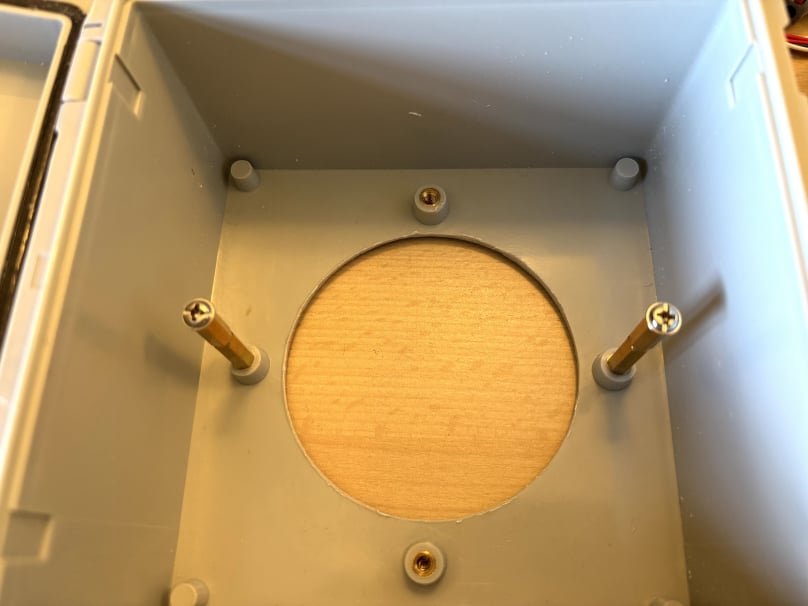
Standoff screws


Attach the mounting plate and water timer to the junction box

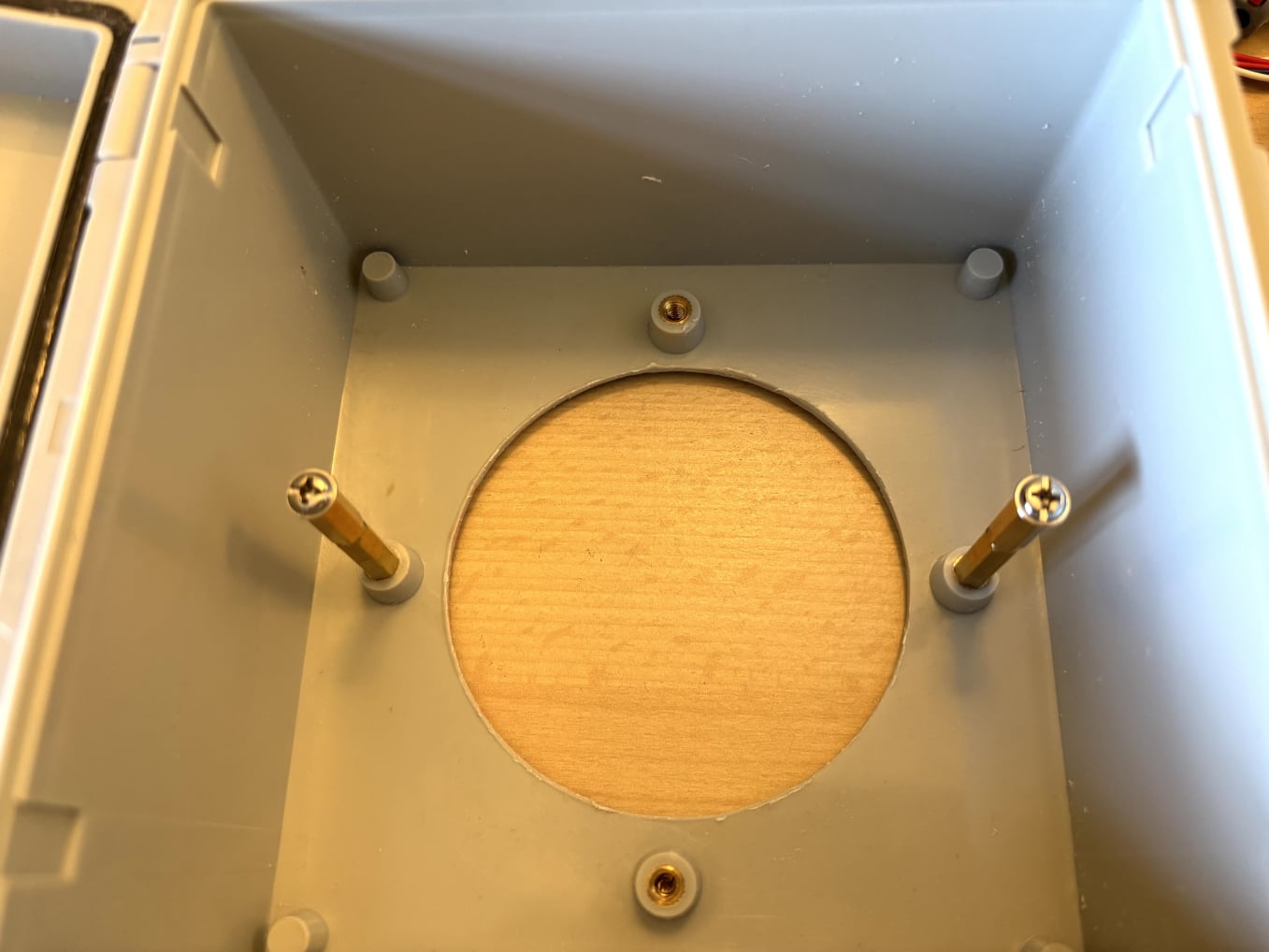
Because the water timer extends into the junction box, space must be left beneath the mounting plate for that and the wire connectors. To provide sufficient clearance, we will need standoff screws to reposition the plate. To achieve this, two standoff screw assemblies are required, each consisting of a 20 mm male-to-female standoff connected end-to-end with a 15 mm male-to-female standoff.

The junction box has four screw mounting points; however, only two opposite mounting points will be used. Screw the threaded end of each standoff assembly into the selected mounting points. The assemblies can be tightened by inserting a screw into the non-threaded end, allowing a screwdriver to be used for tightening.

These temporary screws can be removed before installing the mounting plate.

This image shows the standoff screw assemblies fitted top and bottom within the box. The hinged lid is to the left of the image.


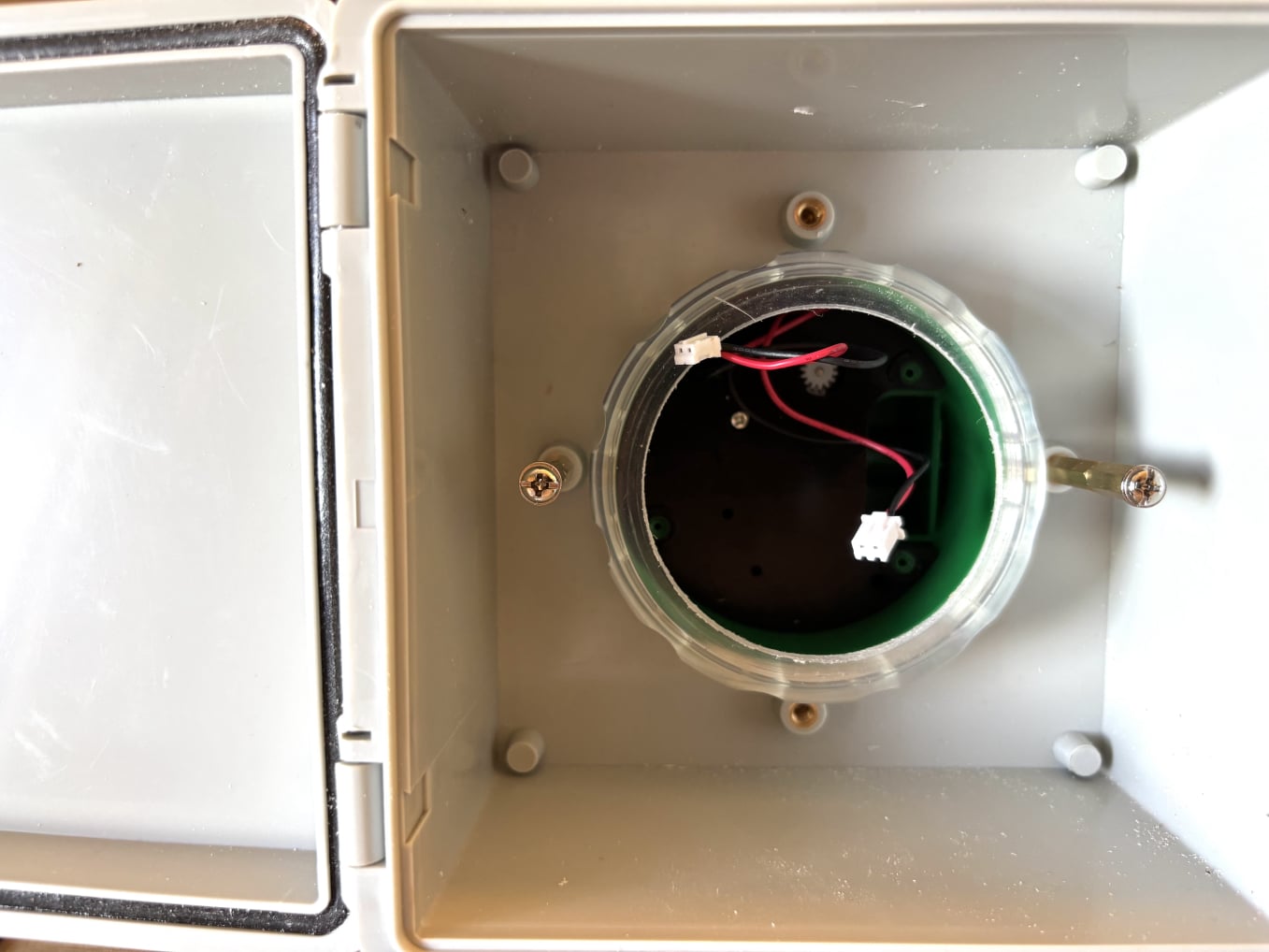
Water valve fitted

To fit the body of the water valve into the junction box, first disconnect the two JST connectors for the motor and sensor. The water valve can now be inserted through the hole in the junction box and secured with the cover.

The lid is on the left-hand side, which will be the top when the water valve is installed. Ensure that the water inlet is also positioned at the top when securing the cover. The inlet is the larger of the two valve connections and should point towards the lid. The direction of water flow is marked on the outside of the valve body. 

Completed installation


We can now fit the mounting plate into the junction box. Before doing so, attach washers to the mounting plate, as the mounting holes are larger than the standoff screws. Secure two M4 washers to the back of the mounting plate using adhesive tape. Create a hole in the tape by pushing the tip of a pencil through the centre of each washer.

Next, reconnect the JST connectors to the motor and sensor in the water valve. Carefully lower the mounting board, components, and wire connectors into the junction box. Guide the wire connectors into the spaces between the standoff screws and into the void within the water valve body.

Ensure that no wires are trapped beneath the mounting plate, then secure the plate in position using the two screws that were previously used to install the standoff assemblies in the junction box.

This image shows the completed installation.


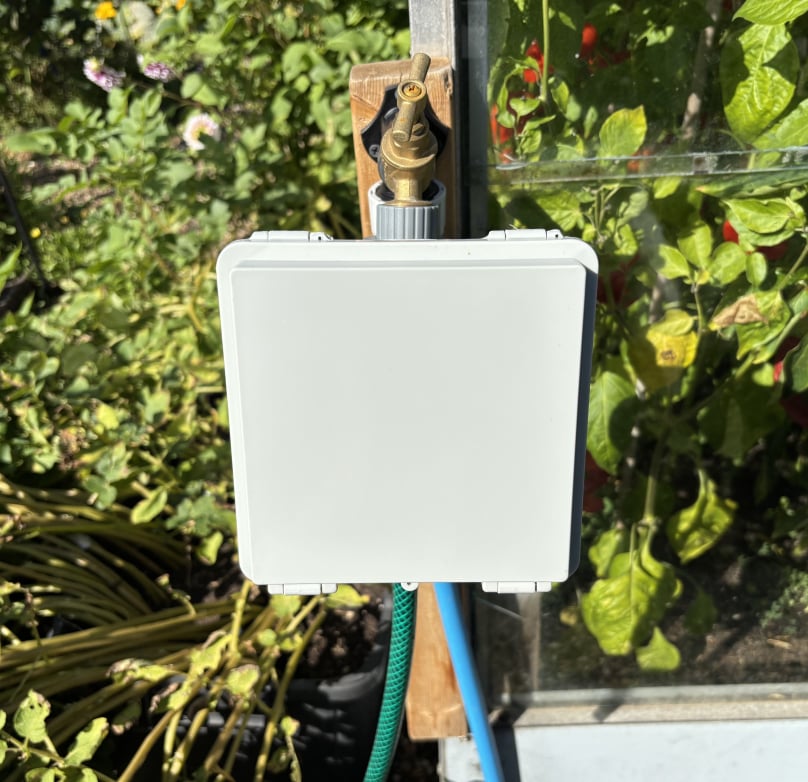
Water valve in the garden

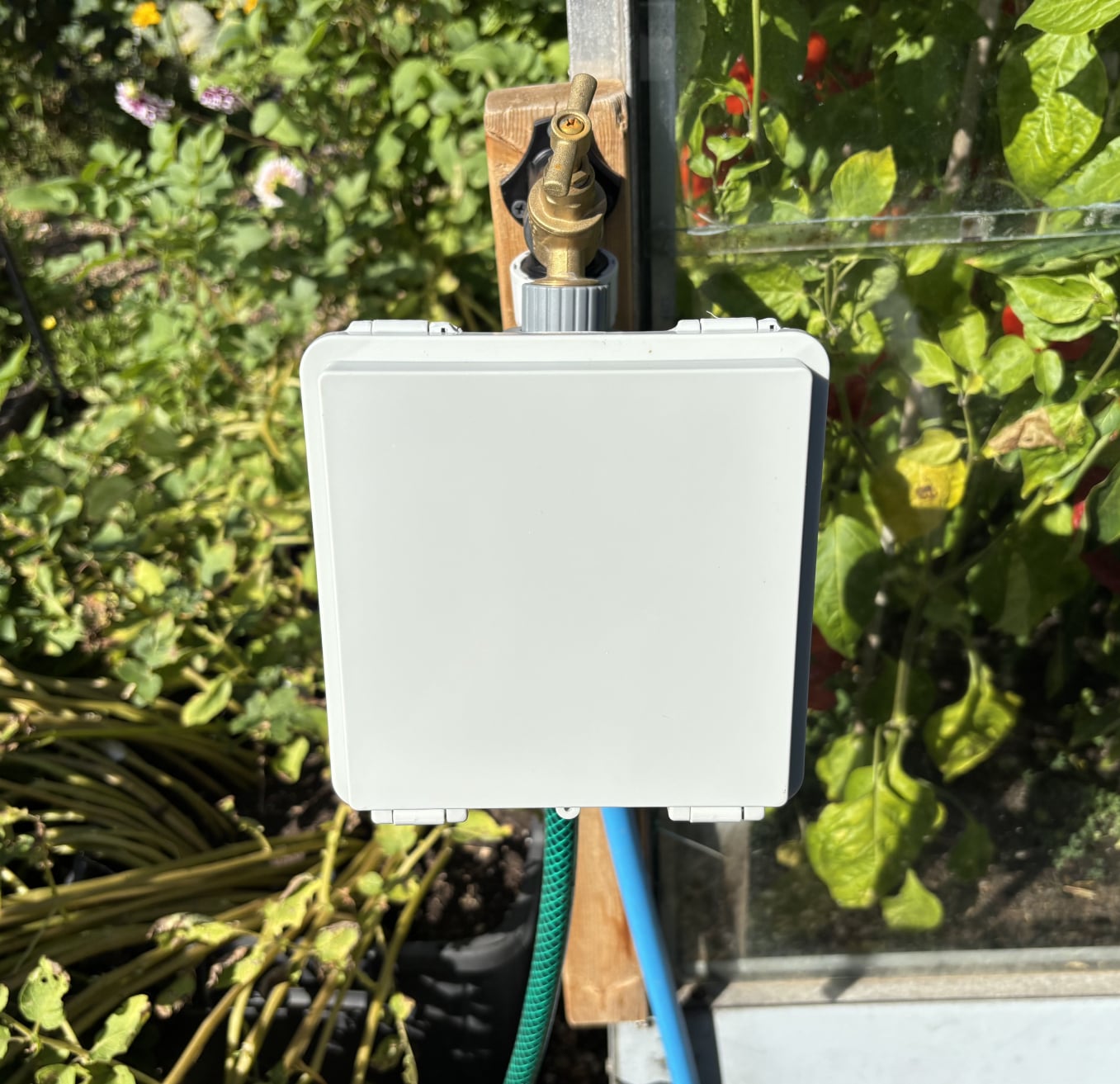
Here you can see the completed water valve mounted on the side of the greenhouse. The blue hose supplies water to the tap, while the green hose feeds the soaker hose in the vegetable bed. The water flow to the soaker hose is controlled by the valve.

We now have an internet connected water valve. The next step is to use it to set up an automatic watering system. Click here for the next step: integrating the water valve with the soil moisture sensor.

Next section coming soon.

© Copyright 2025 Dr Dulcamara - All Rights Reserved